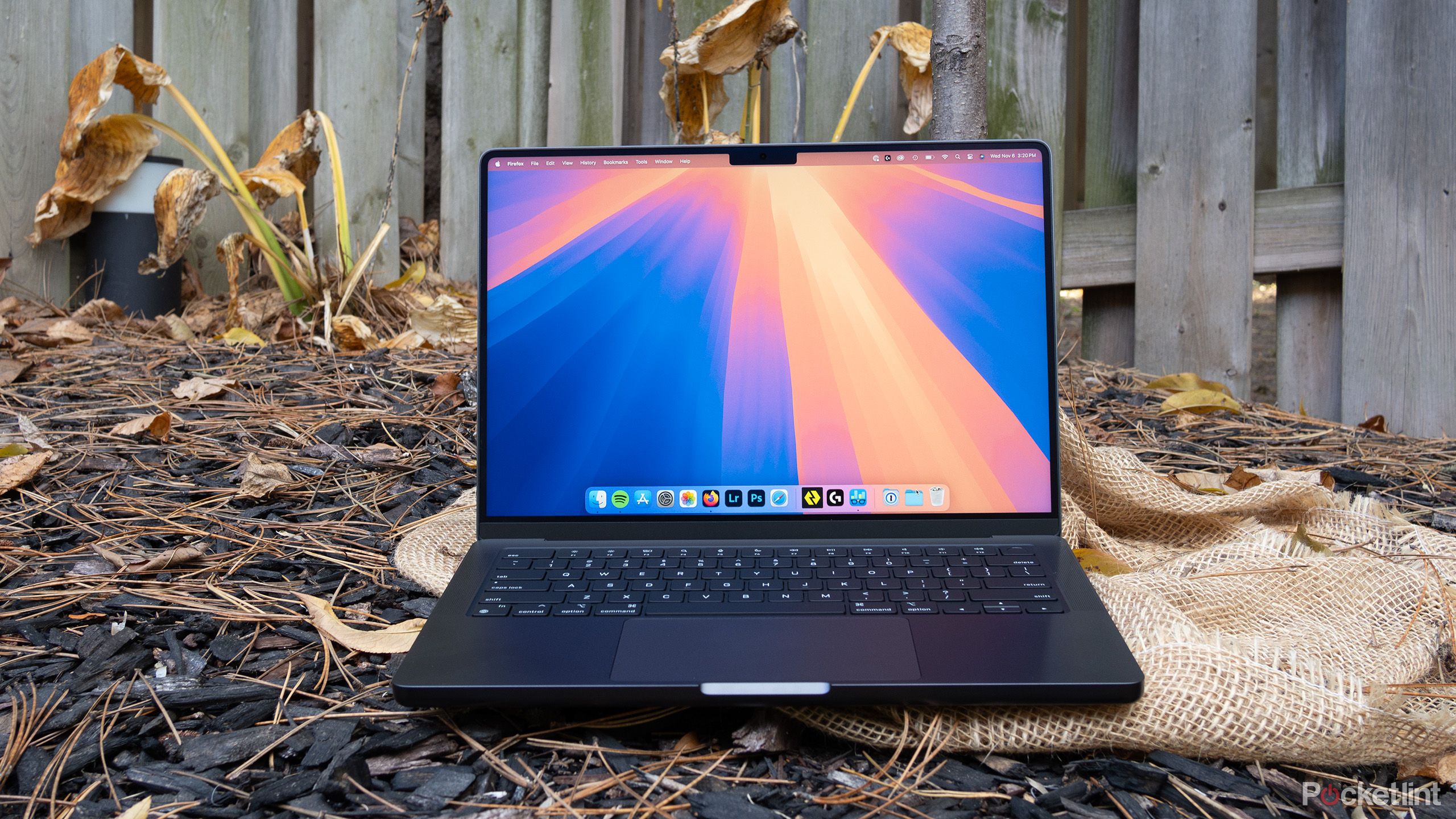
Dealing with a dark screen on a 2016 Apple laptop can feel frustrating, especially when you know the computer itself is running. You might hear the startup chime, notifications ringing, or the cooling fan humming, yet the display remains completely black or intensely dim. This common hardware vulnerability affects the LED display assembly, but it's important to rule out software glitches and power management errors before assuming your machine requires a costly repair.
Understanding what causes these sudden display failures helps you separate simple system hiccups from physical damage. The 2016 generation introduced ultra-thin chassis designs and fragile internal ribbon cables that handle both power delivery and video signals. By following a structured troubleshooting sequence, you can quickly identify the exact point of failure and decide whether a quick system reset or a hardware replacement is necessary.
Identifying Your Specific Display Symptoms
Before opening system menus or taking your laptop apart, examine how the screen behaves when you attempt to power it on. Not all black screens share the same root cause.
- Total Blackout: The laptop powers on normally, the keyboard lights up or the Touch Bar responds, but the LCD panel shows zero illumination or image output.
- Flickering and Strobing: The backlight rapidly pulses on and off, often triggered by adjusting the hinge angle, moving the cursor, or launching graphics-heavy applications.
- Faint Glow-Through: The backlight fails to power on uniformly, leaving dark patches or casting a faint, uneven illumination visible only in a pitch-black room.
- Faint Image Visibility: The screen lacks backlighting entirely, but if you shine a bright flashlight directly against the glass, you can faintly make out desktop icons and application windows underneath.
Performing Quick Software and Power Resets
If your display is receiving power but failing to illuminate due to a corrupted state in the power management system, software resets often restore normal function instantly.
Resetting the System Management Controller
The System Management Controller regulates low-level functions including thermal management, battery charging, and display power delivery.
- Shut down your MacBook Pro completely.
- Press and hold the left-side Shift, Control, and Option keys together.
- While holding those three keys down, press and hold the Power button as well.
- Keep all four keys depressed for roughly 10 seconds, then release them simultaneously.
- Press the Power button once more to boot up the machine.
Resetting the Non-Volatile RAM
Parameter RAM or NVRAM stores specific system settings in persistent memory, which occasionally corrupts video resolution and display brightness parameters.
- Shut down your Mac, then turn it on and immediately press and hold these four keys together: Option, Command, P, and R.
- Release the keys after about 20 seconds, during which your Mac might appear to restart or you may hear a second startup sound.
- Let the operating system load normally and test your display brightness keys.
Diagnosing Hardware Failters and the Flexgate Design Flaw
If system resets yield no results, you are likely dealing with a physical hardware limitation. The 2016 MacBook Pro models are notoriously susceptible to a design issue widely known in repair communities as "Flexgate."
The display backlight cables running inside the hinge are exceptionally thin and taut. Every time you open or close the lid, these flexible cables stretch and flex. Over thousands of open-and-close cycles, the delicate copper traces inside the cable fatigue and snap. When this happens, the circuit powering the LED backlight strip opens, cutting off electricity to the display illumination entirely.
You can verify an internal video or backlight failure by connecting your laptop to an external monitor via an adapter. If the external display shows a crisp desktop image while the built-in screen remains dead, your logic board's graphics processor is likely fine, narrowing the fault down to the display panel assembly or its internal wiring harness.
Exploring Repair and Replacement Options
Once you confirm a hardware failure, your options depend on your technical comfort level and budget. Apple's out-of-warranty service costs for these generation models can sometimes exceed the current market value of the laptop itself, prompting many owners to seek independent alternatives.
- Independent Repair Shops: Local technicians equipped with micro-soldering tools can often replace the broken flex cable or solder jumper wires without forcing you to buy an entire display assembly.
- Complete Assembly Replacement: Swapping out the entire top lid assembly is simpler and safer than repairing individual cables, though replacement parts can be expensive.
- External Monitor Setup: If you primarily use your laptop at a desk, keeping it plugged into an external keyboard, mouse, and monitor transforms the device into a functional desktop setup without paying for expensive screen repairs.
For official guidance on hardware diagnostics and safety procedures, consult the Apple Support Website for troubleshooting resources. You can also review consumer rights and repair program updates through resources like the Electronic Frontier Foundation.
Frequently Asked Questions
Can I prevent Flexgate by keeping my laptop open all the time?
Leaving your laptop open reduces mechanical wear on the display cables, but the internal copper traces have already experienced cumulative fatigue from previous use. While it may slow down further degradation, it cannot reverse existing metal fatigue inside the hinge.
Why does my screen work at a very specific hinge angle?
When an internal ribbon cable is partially severed, opening or closing the lid shifts the remaining strands into temporary contact. If your backlight flickers or turns on only at a 90-degree angle, it confirms a physical break in the display cable wiring.
Is it worth repairing a 2016 MacBook Pro today?
Given the age of the hardware, paying for a full retail display replacement rarely makes financial sense. However, if you find an affordable independent repair shop or use the machine exclusively with an external monitor, it can remain useful for basic web browsing and typing tasks.
Can a failing battery cause backlight failure?
A severely degraded battery can cause unpredictable power delivery issues, but it rarely triggers a total backlight failure while leaving the rest of the computer fully operational. If your battery status shows service warnings, replace the battery alongside your display diagnostics.



