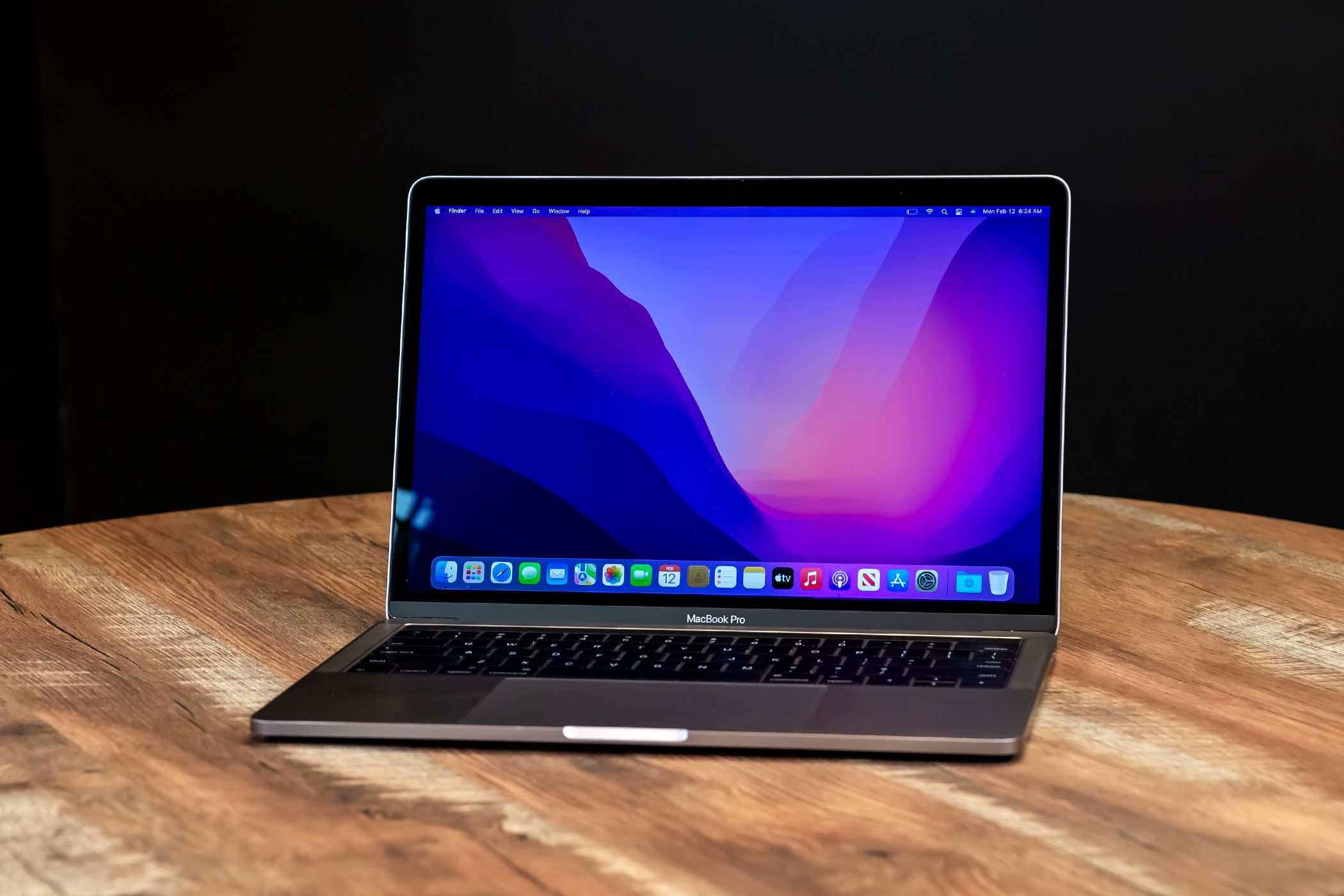
Fixing a 2021 14-inch MacBook Pro requires understanding its unique Apple Silicon architecture and modular design layout. When your machine freezes, runs hot, or refuses to charge, knowing whether the problem stems from macOS software corruption or physical component failure saves you time and costly repair bills.
The 2021 model introduced the M1 Pro and M1 Max chips, a return to HDMI and SD card slots, and a completely integrated system board where memory and storage are soldered directly to the logic board. This means traditional DIY upgrades are impossible, but software troubleshooting and safe component swaps remain entirely feasible with the right preparation.
Diagnosing Software Glitches and macOS System Failures
Software errors on Apple Silicon machines often manifest as kernel panics, endless spinning beach balls, or apps crashing without warning. Because the architecture lacks an Intel-style System Management Controller (SMC), hardware-level power resets work differently than they did on older machines.
If your system locks up entirely, press and hold the power button for ten seconds until the Apple logo appears or the screen goes completely dark. For stubborn startup loops, booting into macOS Recovery mode is your first line of defense.
- Shut down your MacBook Pro completely.
- Press and hold the power button until you see "Loading startup options".
- Click the gear icon labeled Options, then click Continue.
- Open Disk Utility to run First Aid on your internal container, checking for file system corruption.
If First Aid uncovers unfixable errors, running a clean reinstallation through Recovery mode usually resolves persistent software bugs without losing your personal data, provided you've maintained a Time Machine backup. Always verify your third-party kernel extensions aren't conflicting with modern macOS versions. You can check official compatibility lists on the Apple Support portal.
Thermal Management and Fan Noise Solutions
While the 2021 redesign brought massive efficiency gains, heavy workloads like 4K video editing in Final Cut Pro can still push the dual fans to maximum RPM. If your machine sounds like a jet engine while idling or under light office tasks, dust accumulation or rogue background processes are usually to blame.
Open Activity Monitor from your Utilities folder and sort by CPU usage to spot runaway background tasks. Stalled browser tabs or stuck helper utilities often consume one hundred percent of a performance core, generating excess heat.
- Check surface placement: Never use the laptop on a bed, blanket, or thick carpet that blocks the intake vents located along the bottom chassis edges.
- Inspect the heatsink: Over time, fine dust particles settle inside the exhaust fins near the hinge. Using a soft, anti-static brush can clear surface debris without forcing dust deeper into the unit.
- Update macOS: Apple frequently releases thermal profile patches embedded in standard operating system updates. Check for pending packages via System Settings.
Battery Life Degradation and Charging Failures
Battery performance naturally declines over years of charge cycles, but sudden drain or failure to accept charge often points to accessory incompatibility or software calibration issues. The 14-inch MacBook Pro supports fast charging via MagSafe 3 or USB-C, but using underpowered adapters or cheap third-party hubs can confuse the power delivery chip.
If your MagSafe connector light flashes amber, it means the battery isn't charging due to temperature extremes or a communication fault between the brick and the laptop logic board.
- Disconnect the power adapter from both the wall outlet and the laptop.
- Inspect the magnetic pins on the cable and the chassis port for metallic debris or soot.
- Plug the adapter directly into a known working wall socket, bypassing power strips or extension cords.
- Check your battery health percentage under System Settings, General, About, Report, and Power.
If your battery health reads below eighty percent and your runtimes have dropped drastically, authorized replacement is recommended. For deeper technical specifications on battery chemistry and safety, consult the Apple Hardware Tech Specs.
Keyboard, Trackpad, and Port Anomalies
The scissor-switch keyboard on the 2021 model is far more durable than older butterfly designs, but liquid spills and crumbs can still lodge beneath individual keycaps. If a key feels mushy or registers double-clicks, turn the laptop off, tilt it at a seventy-five-degree angle, and use a can of compressed air in short, controlled bursts.
Thunderbolt and USB-C ports on the logic board can also loosen over years of rough cable insertion. If an external display flickers or an external drive disconnects randomly, try a different high-quality certified cable before assuming the port itself is physically damaged.
- Test in Safe Mode: Booting while holding the shift key disables login items and third-party drivers, helping you isolate whether a rogue background app is causing trackpad erratic behavior.
- Clean peripheral connections: Wipe port interiors gently with a dry, lint-free cotton swab. Never insert metal pins or conductive objects into active ports.
- Inspect for swelling: If your trackpad feels stiff to click or the bottom case rocks on a flat desk, a swelling battery may be putting upward pressure on the trackpad mechanism. Stop using the device immediately if swelling is suspected.
Frequently Asked Questions
Can I upgrade the RAM or SSD on a 2021 MacBook Pro?
No. Apple soldered both the memory and solid-state storage directly onto the M1 Pro or M1 Max logic board during manufacturing, making post-purchase hardware upgrades impossible.
What should I do if my MacBook Pro won't turn on at all?
Plug the laptop into its official power adapter and wait fifteen minutes. If the screen remains black, perform a hard reset by holding the power button for ten seconds, or try booting into recovery mode.
How do I know if my repair requires a professional technician?
Any procedure involving liquid damage remediation, logic board component replacement, display assembly swaps, or integrated port soldering requires specialized tools and microsolfering expertise best handled by certified repair centers.
Is it safe to use third-party USB-C chargers?
Yes, provided the charger supports USB Power Delivery (USB-PD) and matches or exceeds the wattage requirements of your specific MacBook Pro configuration. Always stick to reputable brands to protect your power management integrated circuits.



