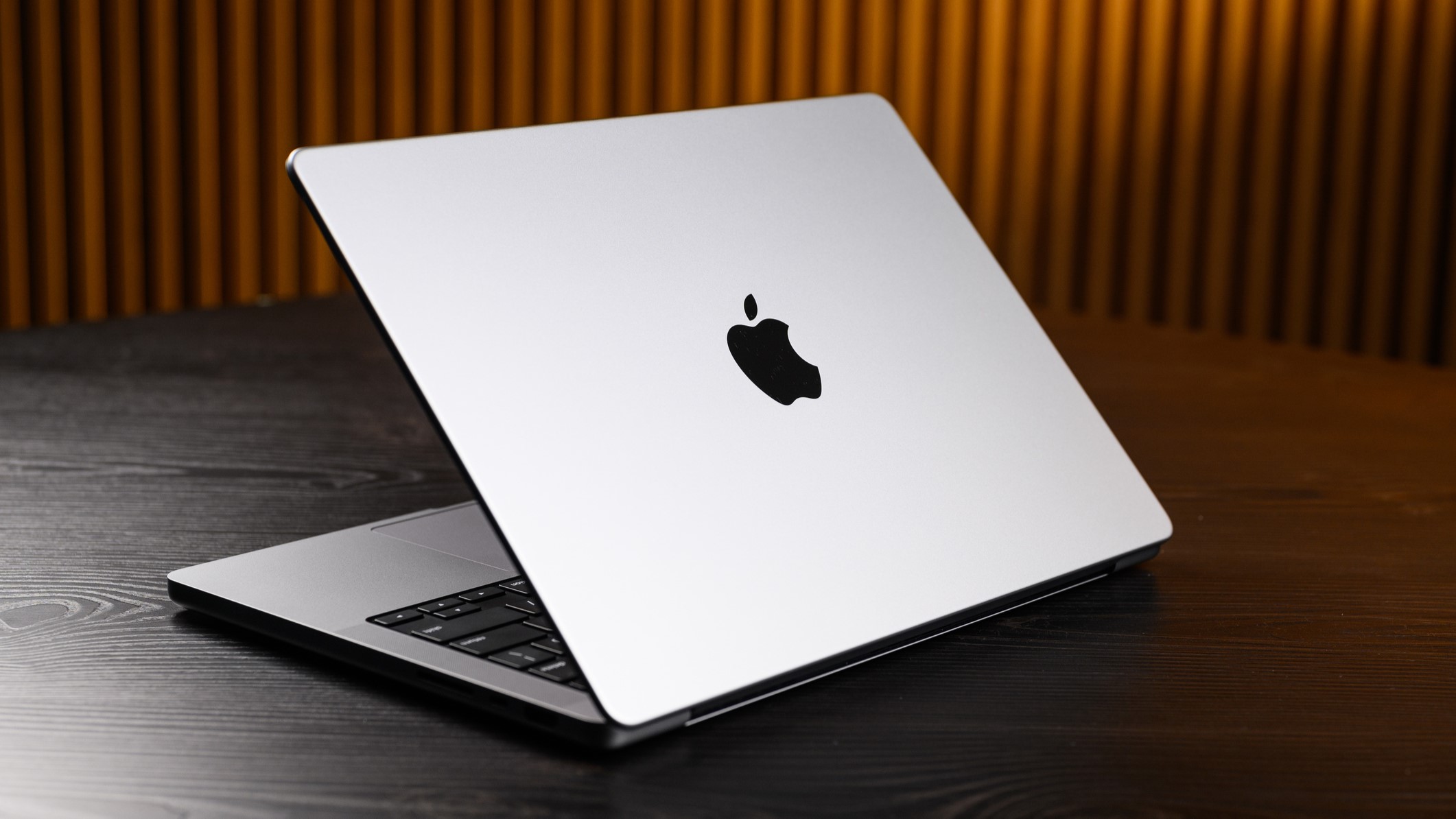
When your MacBook Air display starts showing erratic lines, physical cracks, or sudden blackouts, panic usually sets in. You rely on your ultraportable for work, school, and daily routines, making a screen failure an immediate productivity crisis. Diagnosing whether the issue stems from software glitches, a frayed internal flex cable, or physical LCD panel damage saves you time and prevents unnecessary repair expenses.
Understanding the root cause requires methodical troubleshooting before taking your Mac to a technician or ordering replacement parts. Hardware failures on Apple laptops often mimic software bugs, and vice versa. By isolating the symptoms early, you can determine if a simple setting change helps, or if a physical screen replacement is unavoidable.
Identifying Common MacBook Air Display Failures
MacBook Air screen problems typically manifest in specific, recognizable patterns. Recognizing these visual cues points directly toward the underlying component failure.
- Vertical and Horizontal Lines: Thin colored lines running up and down or across the display usually indicate a failing LCD panel or a damaged signal line. If the lines shift or disappear when you adjust the lid angle, the internal display cable is likely compromised.
- Black Screens and Backlight Failure: Complete darkness can mean the computer is turned off, the graphics processor has crashed, or the backlight has failed. Shining a flashlight directly against the glass in a dark room helps determine if a faint image is still rendering underneath.
- Physical Cracks and Pressure Marks: Internal liquid crystal bleeding, dark blotches, or spiderweb fractures often occur after accidental drops or closing the lid with foreign objects left on the keyboard.
- Screen Flickering: Rapid strobing or intermittent blackouts often worsen during graphics-heavy tasks or when opening and closing the hinge, pointing to wear inside the delicate hinge assembly.
Initial Diagnostic Steps and Software Isolation
Before assuming your hardware is broken, rule out software conflicts and temporary driver glitches using systematic isolation techniques.
- Take a Screenshot: Press Shift-Command-3 to capture your screen. Open the resulting image on an external monitor or your phone. If the lines or artifacts do not appear in the screenshot, the issue is physical hardware, such as the screen panel or internal cable.
- Connect an External Display: Plug an external monitor into your MacBook Air using an HDMI or USB-C cable. If the external monitor displays a clean image while your laptop screen remains distorted, your graphics processor is healthy, and the problem is isolated to the built-in display assembly.
- Perform a Safe Boot: Shut down your Mac completely, then press and hold the power button until loading options appear. Hold the Shift key and click Continue in Safe Mode. This disables third-party extensions that might trigger graphical anomalies.
- Reset NVRAM or SMC: For older Intel-based MacBook Air models, resetting the NVRAM and SMC clears stored display resolutions and power management configurations that occasionally cause persistent flickering. Apple Silicon models manage these functions automatically during standard reboots.
Hardware Causes: Cables, Graphics, and Panels
If software troubleshooting fails, the culprit is physical hardware degradation. Apple's ultraportable design packs sensitive components into a very tight chassis, making them vulnerable to mechanical wear.
The Display Flex Cable Dilemma
Repeatedly opening and closing the lid puts constant mechanical stress on the ultra-thin ribbon cables running through the hinge. Over time, this stress causes internal wire fatigue. Symptoms include flickering that changes intensity as you tilt the screen, or total backlight failure at specific angles.
Physical Pressure and Impact Damage
MacBook Air displays feature extremely tight tolerances between the keyboard deck and the glass panel. Leaving a USB drive, paperclip, or camera cover on the keyboard before closing the lid applies localized pressure, cracking the fragile internal glass substrate without necessarily shattering the outer layer. This results in bleeding ink spots or stark vertical bands.
Repair Options and Decision Making
When hardware failure is confirmed, you must weigh repair costs against the current market value of your MacBook Air.
- Apple Store and Authorized Service Providers: Opting for official service ensures genuine Apple parts and calibrated installations, preserving your device's True Tone capabilities and lid sensors. However, out-of-warranty screen replacements can be costly.
- Independent Repair Shops: Local technicians often provide faster turnaround times and competitive pricing for out-of-warranty machines, though part quality can vary. Always verify if the replacement screen retains ambient light sensing features.
- Cost-Benefit Analysis: If your MacBook Air is more than five or six years old, investing in a complete display assembly replacement may cost nearly as much as purchasing a refurbished or modern replacement laptop. For guidance on current hardware specifications and support lifecycles, review official resources on the Apple Support Website.
Frequently Asked Questions
Can a software update cause vertical lines on a MacBook Air?
Yes. Occasionally, a newly released macOS update introduces display driver bugs that manifest as graphical lines or stuttering. If the lines appeared immediately after an update, check for subsequent patch releases or perform a Safe Boot.
How do I know if my graphics card is failing instead of the screen?
Connecting an external monitor provides the definitive answer. If the external display shows the exact same lines, artifacts, or blackouts, your graphics processor or logic board is failing. If the external display is crystal clear, the fault lies within the laptop screen or its internal cable.
Is it safe to use an external monitor with a broken MacBook Air screen?
Yes. You can use your laptop in "clamshell mode" by connecting an external display, keyboard, and mouse while keeping the MacBook lid closed, provided the internal hardware isn't short-circuiting or overheating.
Why does my screen flicker only when I move the hinge?
This behavior strongly indicates physical wear on the internal display flex cable. The wires inside the hinge have degraded from regular opening and closing, causing temporary loss of signal continuity as the angle changes.



