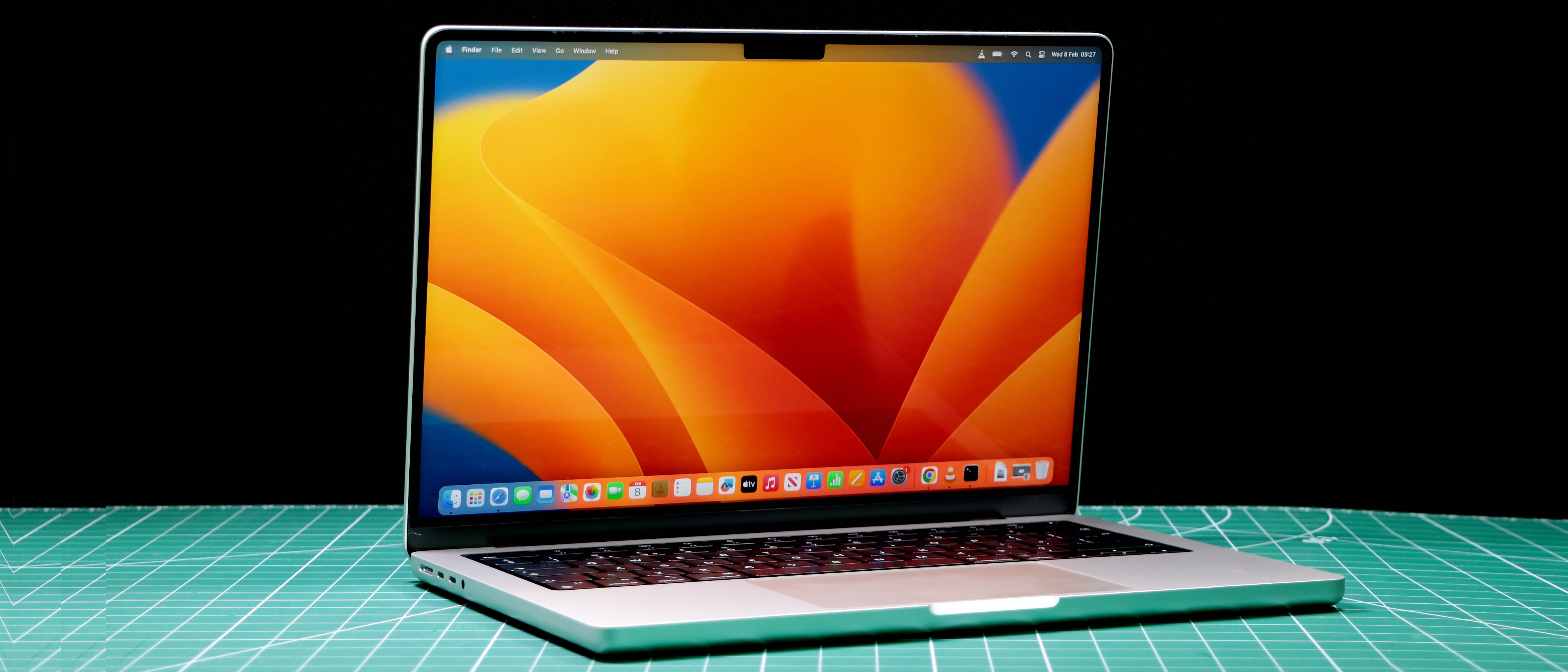
When your MacBook Air screen starts acting up, panic usually sets in fast. You might notice sudden horizontal lines, an erratic strobe effect, or stubborn pixels that refuse to change color. Catching these display anomalies early helps you figure out whether you're dealing with a simple software glitch or a failing hardware component that requires a trip to the Apple Support center.
Fixing these issues starts by isolating the root cause. Software bugs, corrupted cache files, and outdated graphics drivers frequently trigger bizarre visual artifacts that mimic severe hardware failures. Before you pay for an expensive panel swap, you need to run targeted diagnostic tests to separate operating system quirks from physical damage.
Diagnosing MacBook Air Display Issues
Determining whether your screen malfunction is hardware or software related saves both time and money. A few precise tests can pinpoint the origin of the glitch within minutes.
The Screenshot Test
Take a screenshot while the visual glitch is happening on your screen. If the resulting image looks completely normal when you view it on an external monitor or your iPhone, your graphics processor and macOS are rendering things correctly. The fault almost certainly lies in the physical display panel, the TCON board, or the internal display cable. If the captured screenshot actually shows the weird lines or distortion, the issue stems from software drivers or the GPU.
Safe Mode Isolation
Shut down your computer entirely, then turn it back on while holding the Shift key until you reach the login window. Safe Mode loads only essential kernel extensions and disables third-party login items. If the screen stops flickering or glitching while you're in Safe Mode, a background app, a custom display profile, or a faulty utility is causing the conflict.
External Monitor Verification
Plug your MacBook Air into an external TV or monitor via USB-C or HDMI. If the external display runs smoothly while your built-in screen acts erratically, your logic board's primary graphics pipeline is usually fine, pointing the finger squarely at the internal display assembly.
Fixing Software-Driven Screen Glitches
If your diagnostics point toward a software conflict, you can resolve most visual anomalies without turning a single screwdriver.
- Update your operating system: Outdated builds often contain known driver bugs that cause frame drops, color banding, or random flashes. Head to System Settings, click General, and check for available macOS updates.
- Disable True Tone and change refresh rates: Dynamic color adjustment features can occasionally confuse the display pipeline. Go to System Settings, select Displays, and toggle off True Tone. If you use an external panel alongside your Air, lower the refresh rate to test for stability.
- Boot into Apple Diagnostics: Turn off your Mac, turn it back on while holding the D key, and let the system check hardware health. It will flag specific error codes if something internal is failing.
Understanding Dead Pixels and Stuck Pixels
Pixels are microscopic electronic dots made of red, green, and blue sub-pixels. When they fail, they present distinct visual headaches that look different from random code glitches.
Dead Pixels vs Stuck Pixels
A stuck pixel is permanently lit up on a single color—usually bright red, green, or blue—because it's receiving constant power. A dead pixel is completely black because it receives no power at all. Stuck pixels can sometimes be revived by gently massaging the screen surface with a microfiber cloth or running a rapid color-cycling video designed to jolt the sub-pixel back into motion. True dead pixels, however, are permanent hardware defects resulting from manufacturing faults or minor impacts.
Apple's Policy on Pixel Anomalies
Apple evaluates display replacements based on strict threshold guidelines. A single dead pixel right in the middle of your screen might drive you crazy, but standard warranty or AppleCare+ coverage often requires a specific cluster of failed pixels before approving a free display swap. Check your coverage status directly through Apple My Support to see if you're protected.
Dealing with Hardware Failures and Flickering
When physical hardware degrades, software tweaks won't help. Persistent screen flickering accompanied by physical symptoms usually means structural damage.
Flexgate and Cable Wear
MacBook Air models rely on fragile internal ribbon cables routed through the hinge to connect the logic board to the display. Opening and closing the lid thousands of times puts stress on these microscopic circuits. If your screen only flickers when you tilt the display to a certain angle, or if the bottom portion of the screen glows unevenly like stage lighting, the display cable is wearing out.
Liquid Damage and Pressure Cracks
Even minor liquid spills near the hinge or keyboard can seep into the display connector ports, causing corrosion that triggers intermittent signal loss. Similarly, closing your laptop with a tiny foreign object—like a webcam cover, paperclip, or hard keyboard cover—presses the fragile OLED or LCD panel against the metal chassis, creating pressure bleeding and dead zones that expand over time.
Frequently Asked Questions
Can a software update permanently fix a flickering MacBook Air screen?
Yes, if the flickering is caused by a known driver bug or display synchronization error introduced in a specific macOS version, Apple's subsequent patch notes usually resolve it. Always keep your system updated.
How much does it cost to replace a MacBook Air screen?
Out-of-warranty screen replacements vary depending on your specific model year and whether you use official repair channels. Costs typically run high because the entire top-case assembly—glass, LCD, and aluminum shell—must be swapped as a single unit.
Is it safe to use a MacBook Air with a flickering screen?
It's safe temporarily if you connect an external monitor, but flickering caused by a failing flex cable usually worsens over time. Ignoring it can eventually lead to total backlight failure where the display goes completely black.
Will resetting my Mac clear out display glitches?
A simple restart clears temporary VRAM cache and resets active graphics processes, which often cures random graphical artifacts caused by prolonged uptime.



