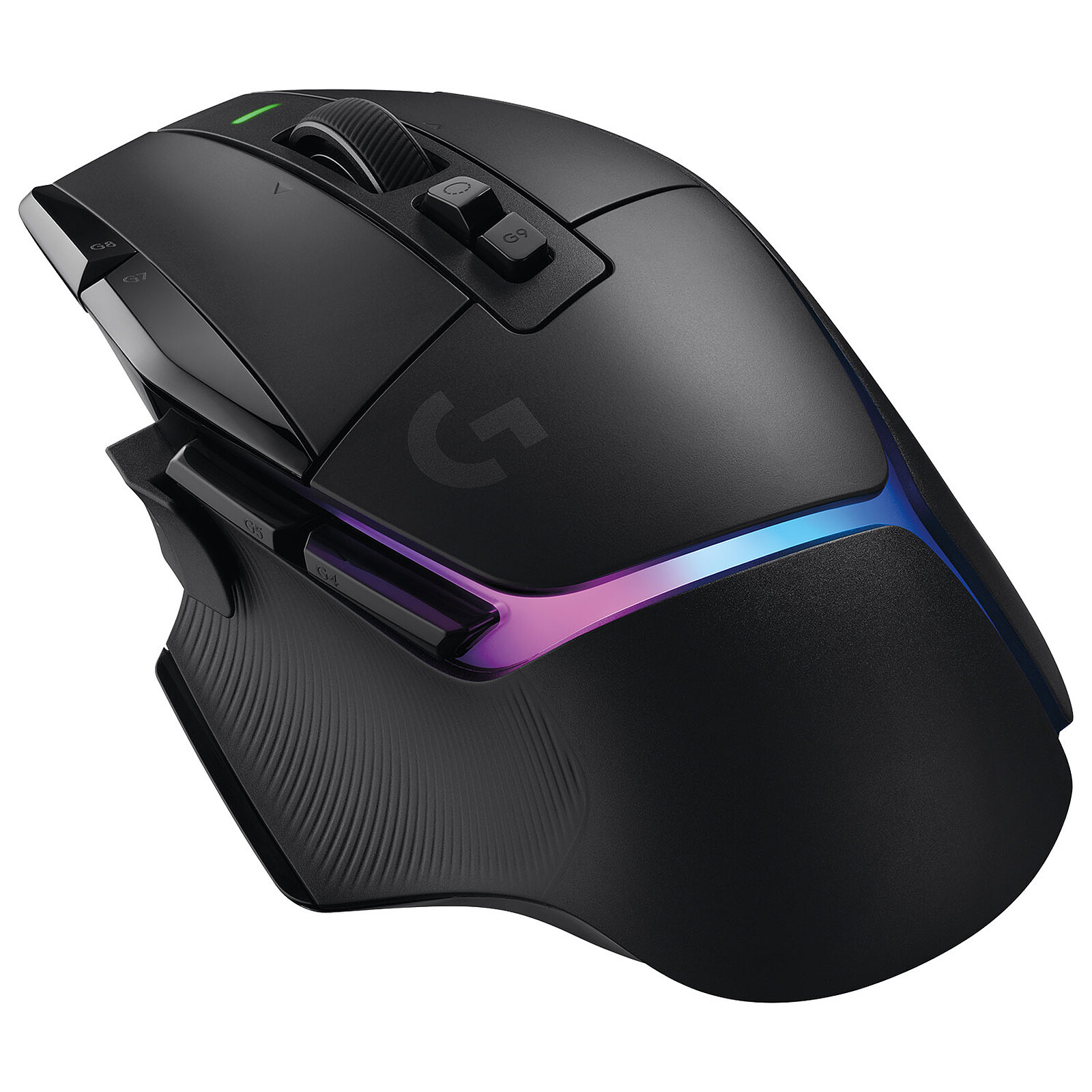
When your Logitech G305 stops responding mid-game, every second counts. You don't have time to guess whether it's a dead battery, a fried USB port, or a desynced Lightspeed receiver. Fixing these pairing failures and wireless lag issues usually takes less than five minutes once you bypass generic advice and target the actual root causes.
Most connection drops happen because of simple power interruptions, physical signal blockage, or software handshake errors between the mouse and the nano-receiver. Let's look at how you can systematically diagnose your setup, clear out interference, and get your pointer moving smoothly again.
Diagnosing Immediate Power and Receiver Failures
Before diving into advanced software fixes, rule out basic hardware faults. A surprisingly high percentage of "broken" mice simply suffer from drained cells or bad port communication.
- Check battery voltage: The G305 runs on a single AA battery. If the indicator light under the DPI button flashes red or doesn't light up at all when you toggle the power switch, swap in a fresh alkaline or lithium battery. Low voltage stops the 2.4GHz transmitter from maintaining a stable handshake.
- Test physical USB ports: Unplug the Lightspeed receiver from your current port. Plug it directly into a rear motherboard port on your desktop rather than a front panel or an unpowered USB hub. Hubs often fail to deliver steady current, leading to intermittent dropouts.
- Eliminate signal barriers: If your desktop tower sits under a metal desk or far away from your mousepad, radio frequency (RF) interference will choke the signal. Bring the receiver closer using a USB extension cable so it sits within direct line of sight.
Fixing Wireless Latency and Cursor Stutter
If your mouse connects but stutters, skips frames, or feels sluggish, you're dealing with packet loss or interference rather than a total pairing failure.
Clear 2.4GHz Band Interference
Your Wi-Fi router, Bluetooth devices, and wireless headphones operate on the exact same 2.4GHz frequency band as your mouse receiver.
- Move Wi-Fi routers, external hard drives, and phone chargers at least eight inches away from the Lightspeed dongle.
- Unplug other wireless receivers temporarily to check if a conflicting dongle is flooding the local airwaves.
Adjust Windows and Software Settings
Background software conflicts can introduce input lag that feels like hardware latency.
- Open your mouse properties in the Windows Control Panel and uncheck "Enhance pointer precision" to disable built-in acceleration that fights your muscle memory.
- Download official management software like Logitech G HUB to check for pending firmware updates. Running outdated firmware on your mouse or receiver often causes erratic tracking and dropped packets.
How to Repair a Desynced or Replacement Receiver
If you swapped out your USB dongle or your mouse lost its pairing profile, they won't automatically recognize each other just because they share the same model. You have to force a manual pairing handshake using utility software.
- Power off your G305 using the physical switch on the bottom.
- Plug your Lightspeed receiver into an open, direct USB port on your computer.
- Open the Logitech Onboard Memory Manager or G HUB software.
- Locate the device settings page, select the pairing or Re-pair utility option.
- Follow the on-screen prompt telling you to toggle the mouse power switch back on.
- Wait roughly ten seconds for the software to confirm the handshake is complete.
Common Mistakes to Avoid
When troubleshooting connectivity, small oversights can waste a lot of time. Don't fall into these common traps:
- Don't use rechargeable batteries that output low initial voltage (such as some 1.2V NiMH cells), as the G305 prefers a steady 1.5V source.
- Don't plug your receiver into a USB 3.0 port if you notice sudden interference; USB 3.0 data lines can emit electromagnetic noise in the 2.4GHz spectrum that disrupts nearby wireless dongles.
- Don't assume a generic third-party USB receiver will pair with your mouse without dedicated configuration software.
Frequently Asked Questions
Why does my G305 freeze for a second randomly?
This usually happens due to temporary signal blockage or power-saving features on your PC's USB root hubs. Disable USB selective suspend settings in your Windows power plan to keep power flowing to your ports continuously.
Can I use any Logitech receiver with my G305?
No. The G305 requires a compatible Lightspeed receiver. It does not support older Logitech Unifying receivers out of the box.
How do I check if my mouse firmware is updated?
Install Logitech G HUB, click on your device gear icon, and look for a blue update banner under the current firmware version string.
Will a low battery cause pairing failures?
Yes. If your battery drops below operational thresholds, the internal transmitter lacks the power to maintain a stable pairing handshake with your computer.



