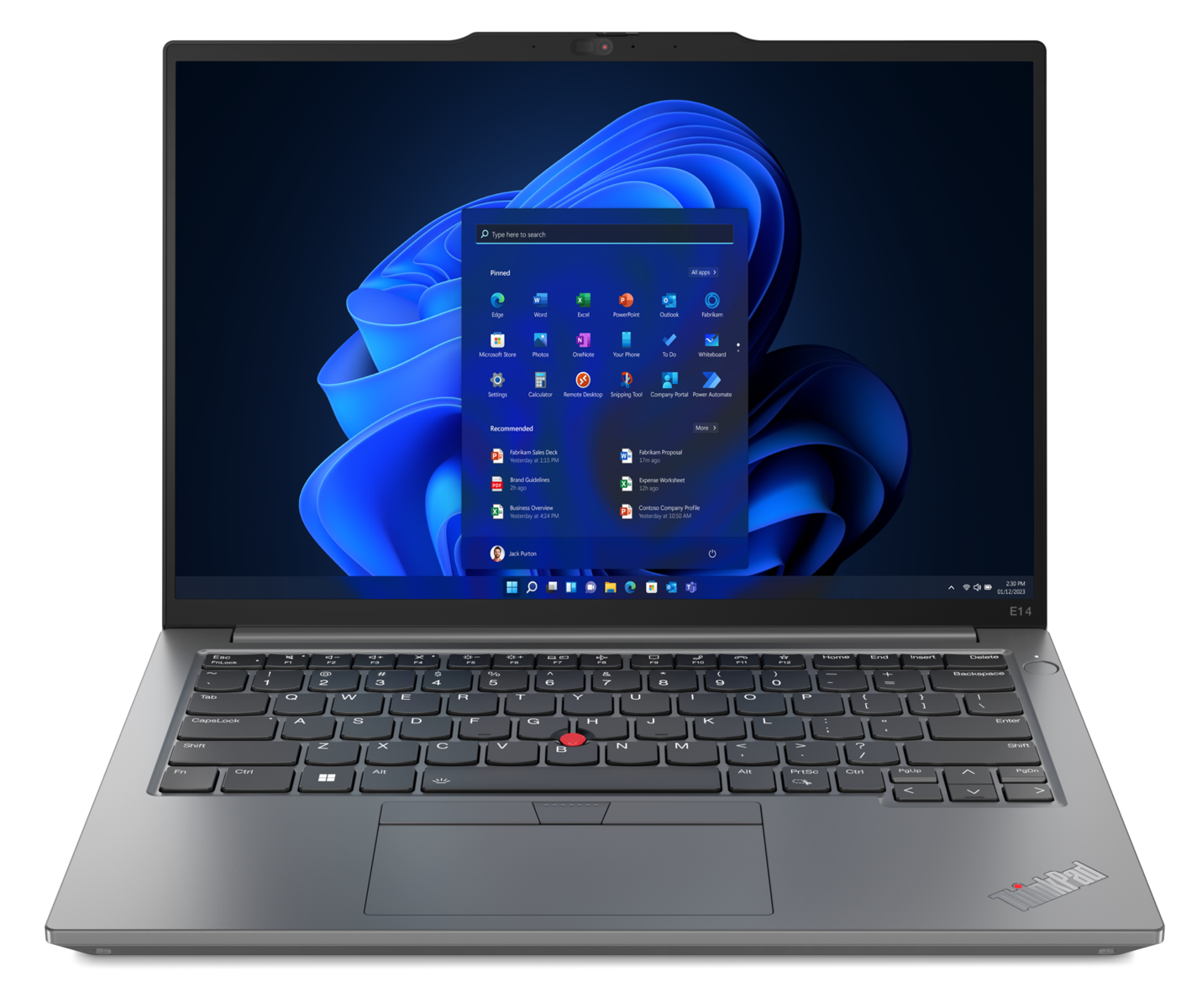
If you've ever misplaced your laptop or worried about sensitive data falling into the wrong hands, software-based tracking solutions offer a crucial layer of defense. Lenovo Smart Lock is a security service integrated directly into the Lenovo Vantage software suite, powered by Absolute Software technology. It gives you remote tools to locate, lock, wipe, and recover your Windows device if it goes missing.
Unlike physical door deadbolts or mechanical locks, this service focuses entirely on digital asset protection and hardware tracking for laptops and desktop PCs. Setting it up properly ensures that if your machine is ever lost or stolen, you maintain the upper hand.
How Lenovo Smart Lock Works
The service operates through a persistent client embedded within your device's firmware and operating system. When activated, it regularly communicates with cloud servers to report location metrics via Wi-Fi triangulation, operating system APIs, and GPS where available.
Because it relies on cloud communication, the device must be powered on and connected to the internet to receive real-time commands. If your laptop is offline when you issue a remote command—such as a system lock or data wipe—the action remains pending until the machine reconnects to a network.
Core Security Capabilities
The feature set centers around four primary actions managed through a web portal or smartphone shortcut:
- Locate: Maps your device's last known coordinates using network triangulation and available sensors.
- Lock: Instantly freezes the operating system, blocking unauthorized access and displaying an optional custom message on the screen (such as a phone number or secondary email for return instructions).
- Wipe: Permanently deletes confidential files and renders the operating system unbootable if recovery is impossible. Note: This action is permanent and irreversible.
- Recover: Connects you with investigative teams who work alongside local law enforcement to track and retrieve stolen hardware.
Step-by-Step Setup Guide
Activating the service requires a Lenovo device running Windows 10 or Windows 11. Follow these steps to configure the software and portal access.
- Open the Lenovo Vantage application on your computer. If it's missing, download it from the official Microsoft Store.
- Navigate to the security section or look for Lenovo Smart Lock Services within the dashboard interface.
- Complete the purchase and activation process. You will receive a registration confirmation email confirming your subscription start date.
- Visit the dedicated Lenovo Smart Lock Portal to verify your account connection and ensure your hardware serial number is correctly registered.
- To enable mobile monitoring, open the portal on your phone's browser, select the mobile app options, and choose Add App to Mobile Home Screen to create a quick-access shortcut.
Common Configuration Mistakes to Avoid
Users often encounter issues when configuring device security suites because of minor oversights. Keeping these pitfalls in mind will save you from headaches later.
- Ignoring network dependencies: Remember that remote lock or wipe commands cannot execute if the machine stays powered off or disconnected from the internet.
- Failing to test portal access: Don't wait until an emergency happens to log into the web portal for the first time. Test your credentials and mobile shortcut right after setup.
- Confusing base warranty with security subscriptions: The tracking service operates independently from your hardware warranty. They carry separate start and end dates, so verify your subscription status annually.
- Incorrect device naming: The portal automatically pulls your computer name from Windows. If you manage multiple machines, change your PC name via Windows Settings (System > About > Rename This PC) so you can identify them easily in an emergency.
Frequently Asked Questions
Does Lenovo Smart Lock track your personal data?
No. The service collects hardware identifiers, antivirus status, and location data required for tracking, but it does not track personal browsing history, private files, or personal communications.
Can the tracking feature work if the laptop is turned off?
No. The device must be powered on and actively connected to an active Wi-Fi or cellular network interface to transmit its coordinates or process security commands.
What happens if I replace my Lenovo laptop?
You must log into the web portal, remove the original device from your active profile, and then install the application client on your new machine using the Lenovo Vantage interface.
Is Linux or Chrome OS supported?
No. The software is strictly built for Windows 10 and Windows 11 environments. It cannot be installed on Chromebooks or Linux distributions.



