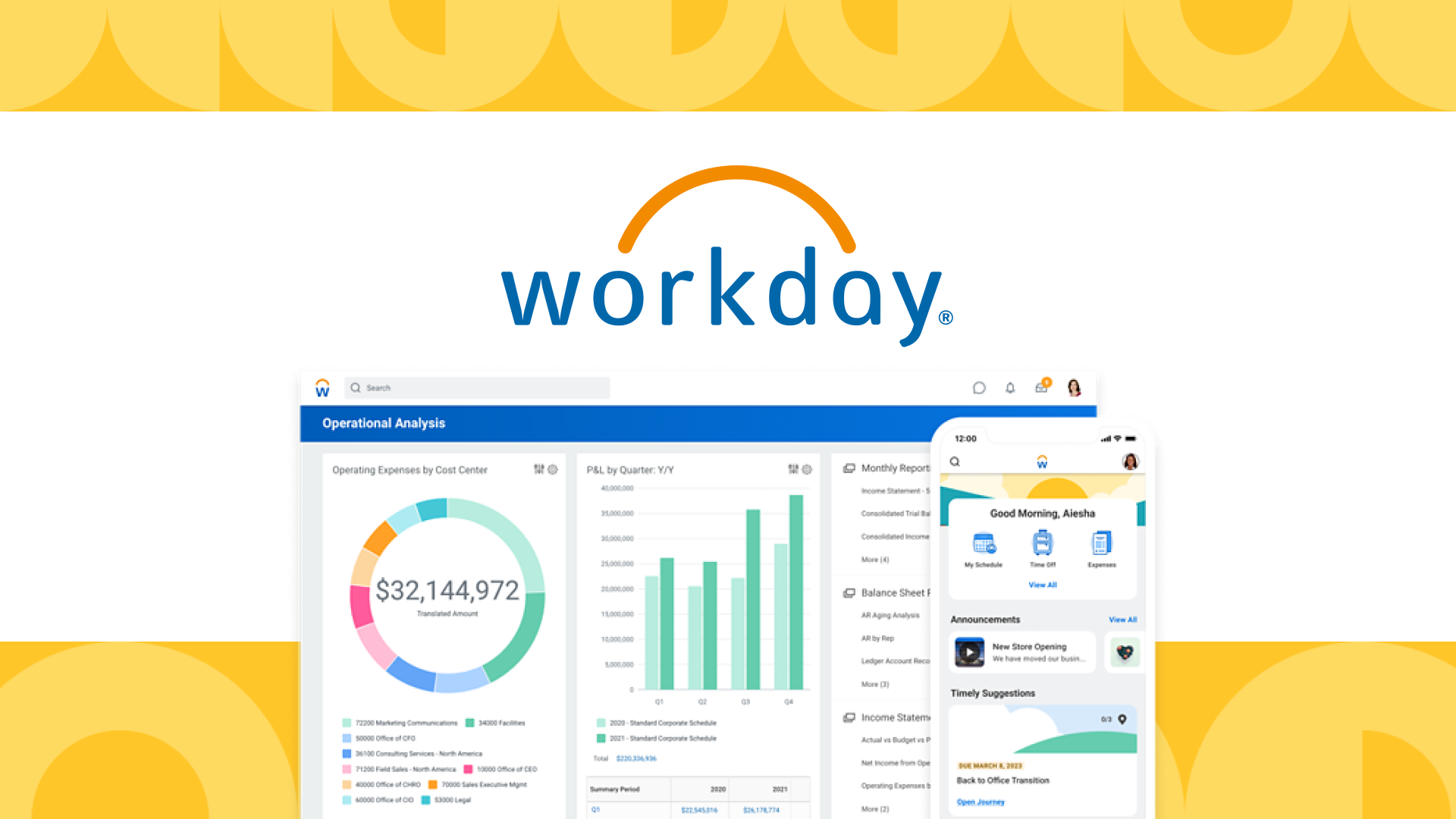
Accessing internal corporate platforms shouldn't feel like navigating a maze. If you're looking for how JPMC My Workspace functions as JPMorgan Chase's centralized employee portal, you're in the right place. This system consolidates daily applications, communication tools, and document management into a single browser-based dashboard, reducing the friction of juggling multiple internal windows.
We'll break down exactly how the platform operates, how authentication works, the underlying architecture behind its daily utility, and practical ways to optimize your workflow without hitting common administrative snags.
What is JPMC My Workspace?
At its core, JPMC My Workspace is a unified digital employee experience platform. Instead of opening separate legacy clients for email, internal chat, project management, and human resources paperwork, staff log into a single portal interface.
The system relies on single sign-on (SSO) architecture tied to enterprise directory credentials. Once authenticated, employees land on a customizable dashboard populated with widgets corresponding to their specific department, role permissions, and active projects.
- Centralized Navigation: Eliminates bookmark clutter by aggregating internal web apps.
- Role-Based Access Control (RBAC): Automatically displays only the tools, repositories, and data streams you're authorized to view.
- Real-Time Synchronisation: Pulls calendar items, unread messages, and pending action items directly from underlying banking infrastructure.
Getting Started and Authentication
Logging into the platform requires compliance with strict institutional security protocols. Because JPMorgan Chase manages sensitive financial data, access is heavily guarded against unauthorized entry.
Authentication Requirements
You can't access the workspace from an unmanaged, personal device without jumping through corporate hoops. Typically, access requires:
- An active corporate network connection (either physical office ethernet, secure corporate VPN, or an approved virtual desktop infrastructure).
- Multi-factor authentication (MFA) using hardware tokens, authenticator apps, or push notifications sent to corporate-issued mobile devices.
- Valid enterprise credentials (NT login / active directory username and password).
If you're setting up your workspace for the first time or onboarding as a new hire, your manager or IT support desk will provision your initial credentials. You'll need to register your MFA device during your first login sequence.
Core Features and Daily Utility
Once you're past the login screen, the platform offers several modules designed to streamline daily tasks.
Task and Deadline Tracking
The task manager widget acts as an actionable to-do list tied to your corporate email and project management boards. You can flag items as urgent, assign follow-up tasks to team members, and monitor progress bars without switching apps.
Document Collaboration
Rather than emailing static file attachments back and forth—which creates version control chaos—the workspace integrates with secure document repositories. Multiple authorized users can review and comment on project briefs, technical specifications, or operational reports concurrently.
Application Launchpad
The launcher acts as your custom app drawer. If you work in risk management, compliance, or software engineering, you can pin your most frequently used internal tools directly to your home screen for one-click access.
Common Friction Points and Troubleshooting
Even robust enterprise platforms run into snags. Here's how to handle typical roadblocks:
- Authentication Loops: If your browser keeps looping back to the login screen, it's usually an issue with stale cookies or a blocked pop-up window required by the SSO provider. Clear your browser cache or switch to an officially supported corporate browser profile.
- Missing App Tiles: If an expected application doesn't appear in your launcher, check with your supervisor. Permissions are managed dynamically; if your internal transfer or project assignment hasn't fully updated in the HR database, your dashboard permissions might lag behind.
- Slow Dashboard Load Times: Heavy enterprise widgets can occasionally bog down. Use the dashboard customization settings to remove unused widgets, which speeds up initial rendering.
Frequently Asked Questions
Can I access JPMC My Workspace from my personal smartphone?
Direct access from personal, unmanaged devices is strictly restricted due to internal data security policies. You must use a corporate-issued laptop, desktop, or a virtual desktop environment that meets compliance standards.
How do I customize my dashboard layout?
Click the settings or customize icon located in the upper corner of your main dashboard. From there, you can drag and drop widgets, add new app shortcuts, and remove modules you don't use daily.
Who should I contact if my account is locked?
If you enter incorrect multi-factor authentication codes or credentials too many times, your account will lock automatically. Contact the internal IT service desk or use the automated self-service password reset portal if available on your secure network.
Is my personal data visible on the workspace dashboard?
No. The platform is strictly for professional operations, task tracking, and corporate communication. It does not aggregate personal banking or unrelated personal data.