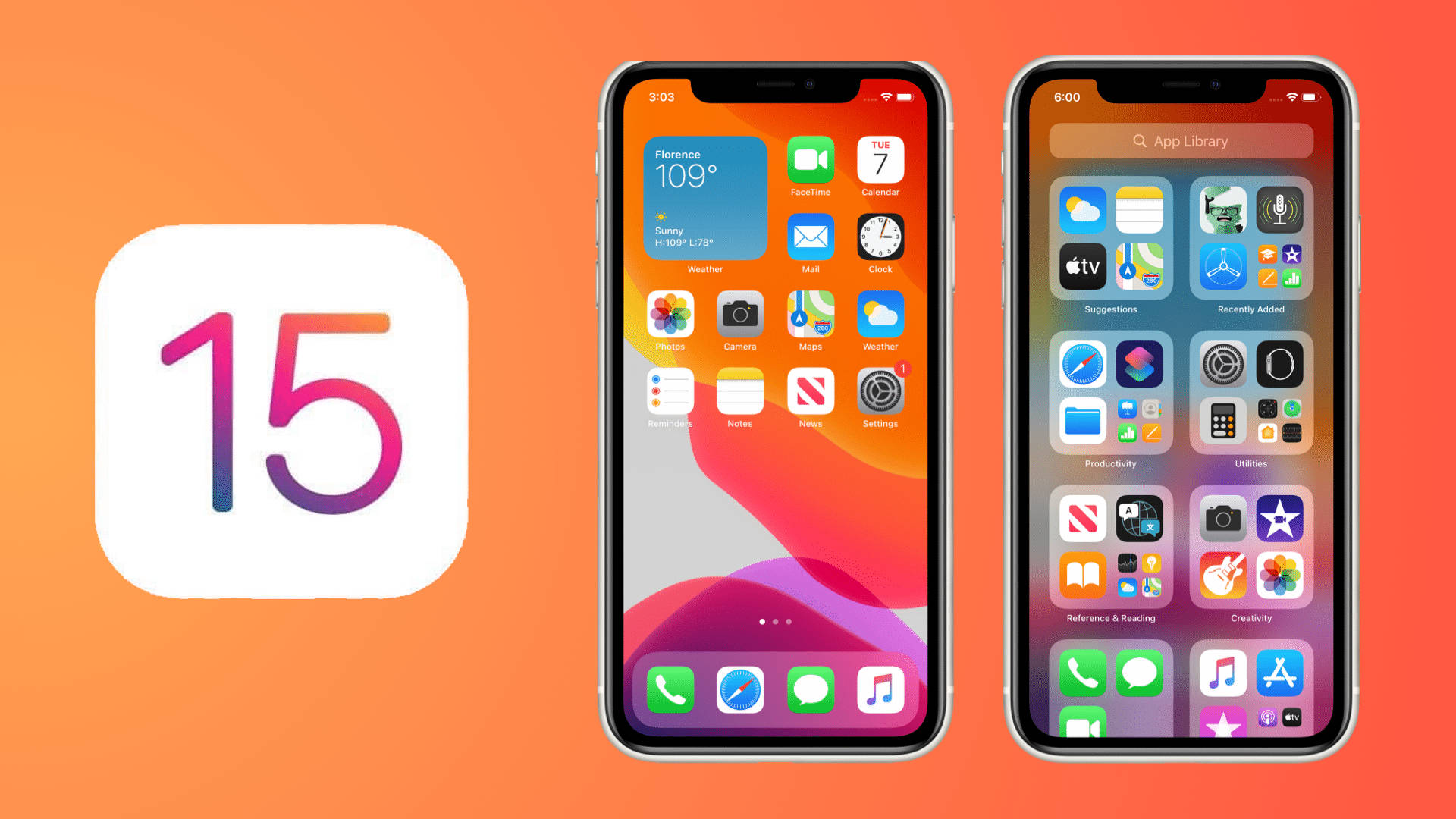
Mastering iOS homescreen customization transforms your iPhone from a stock utility into a personalized dashboard tailored to your daily habits. Apple expanded native layout controls significantly in recent software updates, allowing deep visual tailoring without requiring jailbreaking or sketchy third-party launchers. You can now place app icons anywhere on the grid, tint icons with custom accent colors, scale widgets dynamically, and hide entire pages of apps to maintain a clean aesthetic.
Many online guides point users toward fake tools or hallucinated third-party apps like the fictional "Com.scnews.com.sc" launcher, which doesn't exist on the official App Store and misunderstands how iOS handles interface personalization. Apple operates a sandboxed operating system, meaning you customize your screen using native tools, the Apple Support Guide, shortcut automation, and verified App Store widget apps like Widgetsmith or Color Widgets.
Native iOS Customization Tools
Apple provides robust tools that let you reshape your device layout completely. Understanding these native options ensures your setup remains stable, battery-efficient, and secure.
Moving Apps and Creating Blank Spaces
You no longer need invisible placeholder apps or third-party web clips to create empty space on your grid.
- Long-press any empty area on your homescreen until the app icons begin to jiggle.
- Tap the Edit button in the top-left corner, then select Edit Layout. Alternatively, simply drag apps wherever you want on the grid.
- Drop apps into any open slot. iOS now lets you leave gaps between icons, letting you frame background wallpapers properly.
- Tap Done in the top-right corner to save your arrangement.
Dark Mode and Tinted Icon Palettes
iOS allows you to shift the color profile of your entire app grid to match your wallpaper or personal mood.
- Enter the jiggle mode by long-pressing the background.
- Tap Edit at the top left and select Customize.
- Choose between Automatic, Dark, Light, or Tinted modes.
- If you choose Tinted, use the color sliders to pick a hue. The system automatically recalculates icon colors to match your chosen tint, creating a unified monochromatic or pastel palette.
- Select Large to remove app labels entirely beneath your icons, giving your home screen a minimalist, text-free layout.
Enhancing Utility with Widgets
Widgets bridge the gap between static app icons and live information. They bring glanceable data directly to your fingertips without forcing you to open separate applications.
Stacking Widgets for Space Efficiency
If you love widgets but hate clutter, smart stacks are your best friend. You can stack multiple widgets of the exact same size on top of each other.
- Drag one widget directly on top of another widget of matching dimensions.
- Swipe up or down on the stack to cycle through your tools manually.
- Turn on Smart Rotate by long-pressing the stack, tapping Edit Stack, and toggling the switch. iOS will automatically surface the most relevant widget based on your routine, time of day, or location.
Practical Widget Configurations
To build a functional setup, combine interactive tools with productivity trackers. For official documentation on managing apps and widgets, check out the Apple iPhone User Guide.
- Morning Routine Stack: Combine a weather forecast widget, your calendar agenda, and a to-do list app so your morning starts with clarity.
- Fitness Dashboard: Place activity rings next to a hydration tracker to monitor health metrics at a single glance.
- Quick Access Shortcuts: Use native shortcut widgets to launch specific contacts, direct navigation home, or trigger smart home scenes with one tap.
Step-by-Step Theme Setup
Building a cohesive theme requires patience and a structured workflow. Follow these steps to design a custom aesthetic that doesn't compromise speed or battery life.
- Pick a Clean Wallpaper: Choose a wallpaper with low visual noise or a clean gradient so your icons remain legible. Save it to your Photos app.
- Declutter Your Pages: Hide unnecessary application pages by tapping the page dots at the bottom of your screen in jiggle mode, then unchecking the pages you want to banish to the App Library.
- Configure Icon Tints: Apply a matching dark or tinted color palette via the native customization menu to unify third-party apps with your system apps.
- Deploy Custom Shortcuts (Optional): If you want completely custom aesthetic icons, use the native Shortcuts app. Open Shortcuts, create a new script with the "Open App" action, select your target app, tap the share menu, select Add to Home Screen, and assign a custom image from your photo library.
- Lock Your Layout: Once you finish, avoid accidental edits by locking your screen rotation or simply being mindful not to trigger jiggle mode.
Common Customization Mistakes
When tailoring an iPhone interface, users often run into a few recurring pitfalls that ruin the user experience.
- Overcrowding Every Pixel: Jamming every inch of your screen with dynamic widgets drains battery life faster and creates visual fatigue. Keep secondary pages clean.
- Sacrificing Usability for Aesthetics: Designing a purely monochrome setup where you can't distinguish app icons leads to daily frustration. Keep essential communication apps easily identifiable.
- Downloading Untrusted Launchers: Avoid web profiles or untrusted third-party apps promising deep system modifications. They often compromise security, inject intrusive ads, or break push notifications.
- Neglecting Focus Modes: Failing to link your custom homescreens to iOS Focus modes means your work apps appear during relaxation time and vice versa. Assign specific layout pages to specific Focus profiles in your settings.
Frequently Asked Questions
Can I change app icons on iOS without shortcuts?
Yes, modern iOS versions allow native tinting across all apps directly through the jiggle menu. However, if you want completely unique custom image artwork for individual icons, you must use the native Shortcuts app workaround.
Do custom widgets drain iPhone battery?
Widgets that poll location data, constant live GPS tracking, or heavy data refreshes every few minutes can impact battery life. Stick to standard update intervals for weather and news widgets to preserve battery performance.
How do I hide an app without deleting it?
You can remove apps from your homescreen while keeping them installed on your device. Long-press the app icon, tap Remove App, and select Remove from Home Screen. You can always find it later by swiping right to access the App Library.
Can I save multiple homescreen layouts?
iOS handles layout management primarily through Focus modes. By assigning specific home screen pages to distinct Focus filters (like Work, Personal, or Sleep), your phone layout automatically shifts based on the time or your location.



