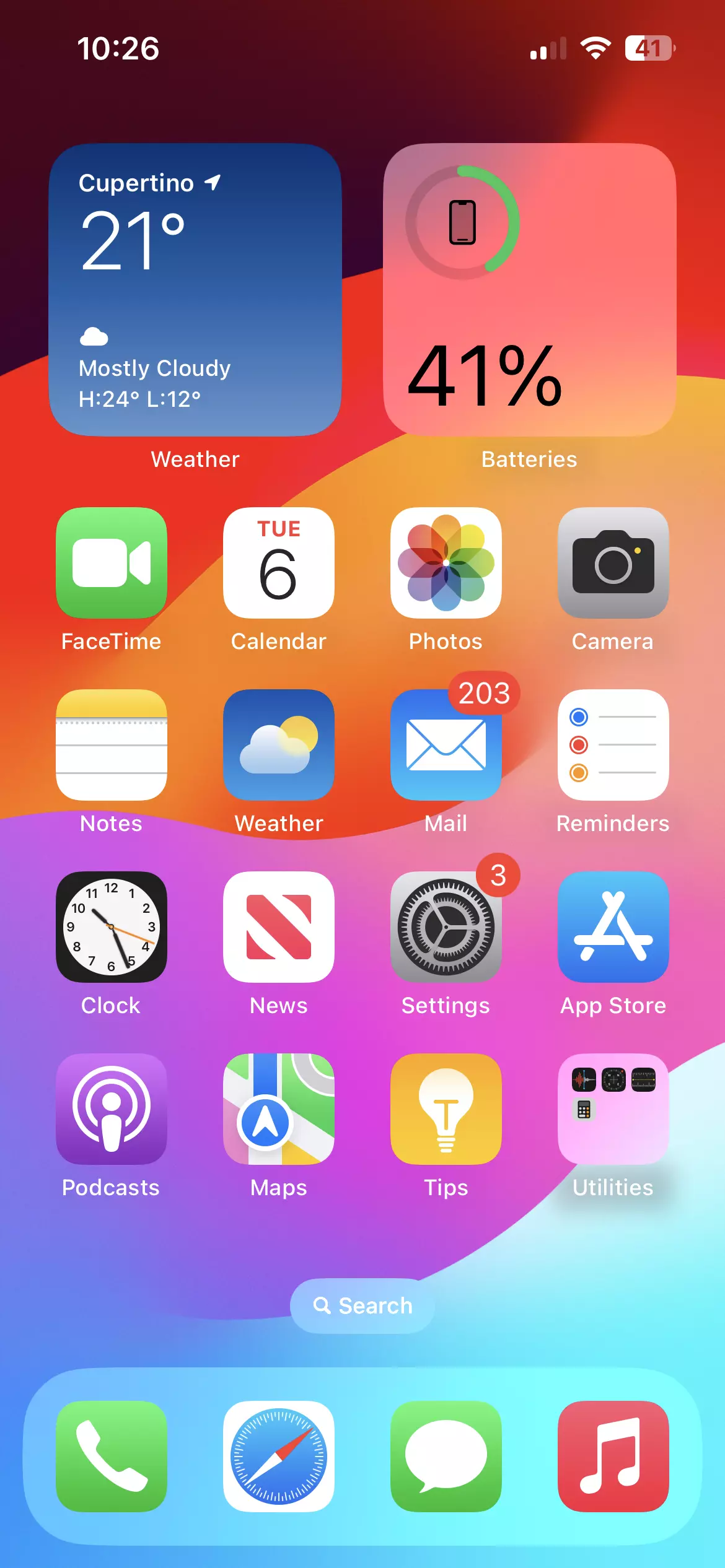
An iOS beta version is Apple's pre-release operating system software, built to let developers test app compatibility and give eager users an early look at upcoming features before a public rollout. Apple releases these builds across distinct channels to catch bugs, test stability, and gather telemetry data.
Installing pre-release software changes how your iPhone handles updates, stability, and backups. If you don't know the difference between developer channels, public tracks, and release candidates, you risk breaking your primary device or losing data you can't recover.
Understanding Apple Beta Channels
Apple separates its testing pool into two primary user-facing tracks, alongside a final validation phase. Knowing which track you belong to dictates when you receive software builds and how stable your phone will be.
- Developer Beta: Tailored for application creators and testers. It drops first, often containing rough code, unexpected battery drain, and broken app integrations. Apple requires your device to link with an authorized account matching the Apple Developer records to pull these builds directly.
- Public Beta: Managed through the Apple Beta Software Program, this track is open to any user with a standard Apple Account. Public betas usually arrive a few days or weeks after the developer counterpart, once glaring installation blockers have been patched out.
- Release Candidate (RC): This is the final stage of the beta lifecycle. When Apple labels a build as an RC, it's typically the exact software slated to roll out to the general public a week later, provided no last-minute showstopping bugs appear.
How to Install an iOS Beta Safely
Apple streamlined the installation process for modern devices. If your iPhone runs iOS 16.4 or later, you don't need to hunt down shady third-party configuration profiles on the web.
- Back up your data: Plug your iPhone into a computer and create a secure archival backup via Finder or iTunes (or ensure your encrypted iCloud backup is current). Never skip this step; beta software can corrupt databases.
- Open settings: Navigate to Settings > General > Software Update on your device.
- Select beta updates: Tap on the Beta Updates row. If it doesn't appear immediately, wait a few seconds or verify that your Apple Account is signed into the correct portal.
- Choose your track: Select either the Developer Beta or Public Beta option depending on your account permissions.
- Download and install: Go back to the main Software Update screen, wait for the pre-release package to populate, and tap Download and Install.
Common Risks and Hidden Pitfalls
Running pre-release code on a daily driver phone comes with steep trade-offs. It's easy to get caught up in the excitement of new UI elements, but the reality of daily usage can be frustrating.
Battery degradation is a frequent side effect. Diagnostic logging, background indexing, and unoptimized background processes routinely slash screen-on time by thirty to fifty percent. Furthermore, banking apps, corporate Mobile Device Management (MDM) profiles, and specific games frequently crash or refuse to launch entirely on pre-release operating systems due to strict security checks.
The exit cost is another major trap. If you install a beta version and decide you hate it, you can't simply toggle a switch to go back. Downgrading requires putting your iPhone into recovery mode, wiping the device completely, and restoring from an archival backup made before you joined the beta track. If your only backup was made while running the beta, it won't unpack onto an older, stable iOS build.
Frequently Asked Questions
Can I use the same Apple Account for developer and public betas?
Yes, you can use a single Apple Account for both, but your device can only pull updates from one active channel at a time based on your system settings selection.
Do I have to pay to join the Apple Beta Software Program?
No, the public testing program is entirely free for anyone with a valid Apple Account who agrees to the program terms.
Why is my Beta Updates menu missing?
If the Beta Updates option doesn't show up in your settings, your device is likely running an older iOS version, or your active Apple Account hasn't been recognized by the server as registered for that specific testing track.
How do I stop receiving beta updates?
Go to Settings > General > Software Update > Beta Updates and toggle the setting to Off. Your phone will remain on its current build until the next stable, public version of iOS surpasses your version number.



