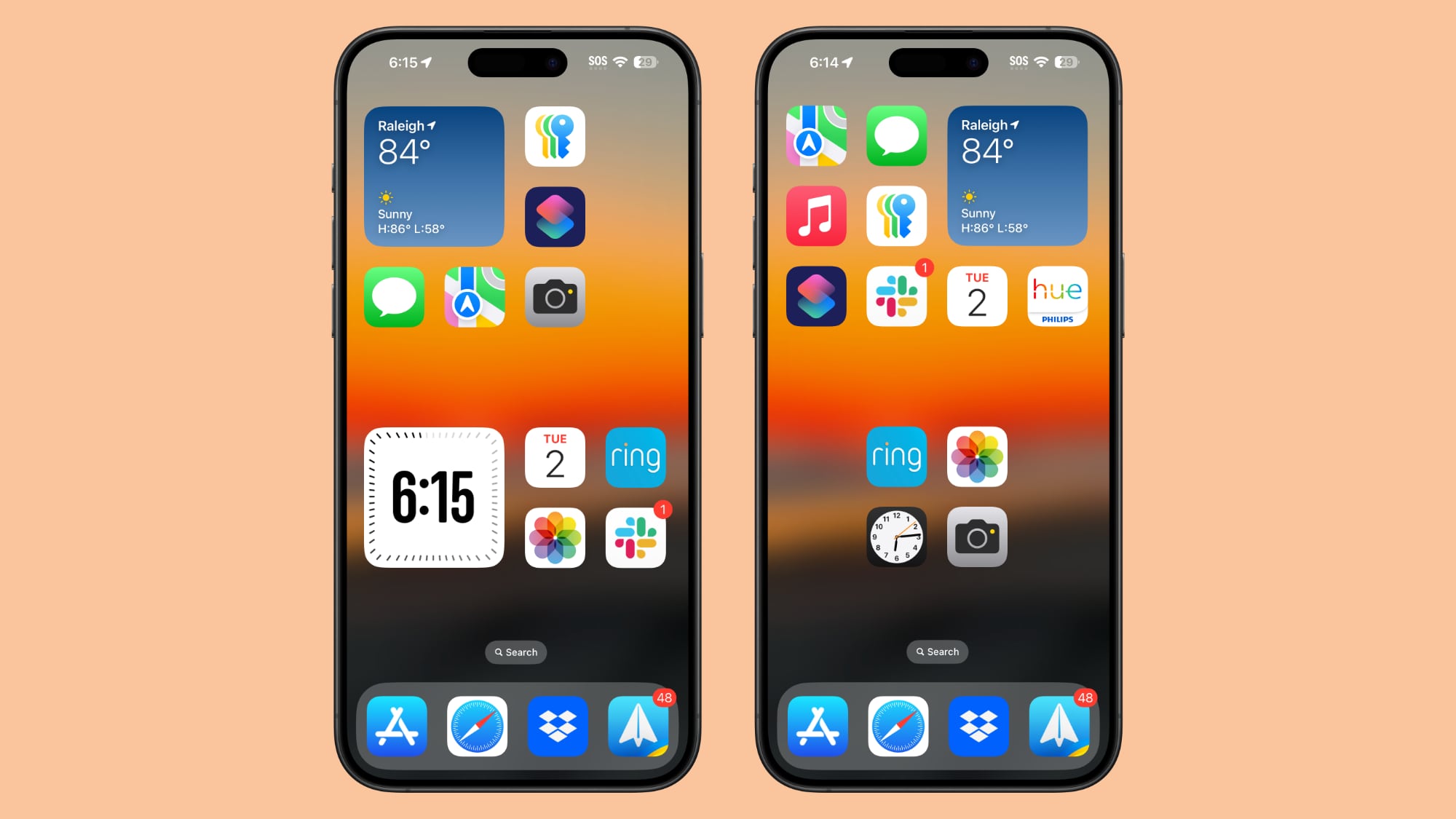
Apple released iOS 18 to shift how users interact with their mobile devices through system-level customization, deep machine learning integration, and overhauled native apps. If you're running a compatible device, you'll notice changes from the moment you wake up your screen. This update moves past minor tweaks to deliver genuine control over your home screen, smarter automation, and granular privacy safeguards.
Understanding what changed helps you skip the guesswork and set up your iPhone efficiently. Let's break down the major additions, how they work in practice, and what you need to know before installing the software on your daily driver.
Home Screen Customization and Control Center
For over a decade, iOS kept app icons locked to a rigid grid at the top of your screen. iOS 18 breaks that rule. You can now place icons and widgets anywhere on the grid, leaving empty spaces around your wallpaper or framing your favorite background photo without third-party blank icon workarounds.
App icons also support a new dark mode tinting option that automatically shifts icon color palettes based on your system appearance or custom color choices.
The Control Center underwent its first major structural redesign since iOS 11. Instead of a single rigid layout page, it's now a multi-page, fully customizable space. You can resize control groups, add third-party controls directly to the toggle gallery, and create dedicated pages for specific contexts like smart home accessories or media playback.
Apple Intelligence and Siri Upgrades
The headline feature for newer devices is Apple Intelligence, a suite of on-device and cloud-hybrid machine learning models designed to assist without compromising personal data.
Siri received its most ambitious architectural overhaul since launch. The assistant features a glowing light border that wraps around your screen edge when active, maintains conversational context across follow-up questions, and understands on-screen content. If you ask Siri about a restaurant a friend texted you earlier, it reads the message thread to pull the address without requiring you to switch apps.
Writing Tools built directly into the system layer let you rewrite, proofread, or summarize text across almost any text field—from Mail and Notes to third-party chat apps.
- Proofreading: Checks grammar, word choice, and sentence structure with a single tap.
- Summarization: Generates bulleted summaries of long email threads or lecture notes instantly.
- Smart Reply: Drafts contextual responses in Mail based on the tone of the incoming message.
Messages and Communication Upgrades
The Messages app gains several long-requested features that bring it closer to parity with cross-platform chat apps while leveraging Apple's proprietary ecosystem security.
You can now schedule messages to send later in the day, apply rich text formatting like bold, underline, and animated text effects to individual words or phrases, and use any emoji or sticker as a Tapback reaction.
For users communicating across platforms, iOS 18 adds support for RCS (Rich Communication Services) messaging in the Messages app. This brings typing indicators, read receipts, and high-resolution media sharing to text conversations with Android users, replacing the outdated SMS/MMS standard for green-bubble chats.
Photos App Overhaul
The Photos app received the largest redesign in its history, unifying the library into a single, clutter-free view. The top half displays your photo grid, while a redesigned grid layout below automatically organizes your library into collections by theme, such as Recent Days, Trips, People & Pets, and Memories.
You no longer have to tap through multiple tabs to find specific screenshots, receipts, or recent videos. Pinned collections let you keep your favorite albums or pet folders front and center without scrolling through years of snapshots.
Privacy, Security, and App Locking
Privacy remains a core focus of the update, with new controls designed to secure sensitive apps from casual snoopers or unauthorized access.
You can now lock or hide any app on your iPhone. Locking an app requires Face ID, Touch ID, or your passcode to open it, even if your phone is already unlocked. Hiding an app moves it to a hidden apps folder that is locked behind authentication, and removes its notifications and search results from the rest of the system.
Other privacy additions include:
- Selective Contact Sharing: Choose specific contacts to share with an app rather than handing over your entire address book.
- Accessory Connection Controls: Manage which local network accessories can interact with your device.
You can read more about Apple's privacy architecture directly from Apple Privacy.
Frequently Asked Questions
Which iPhones support iOS 18?
iOS 18 is compatible with iPhone XS, iPhone XR, and all newer models released from 2019 onward. However, advanced Apple Intelligence features require an iPhone 15 Pro, iPhone 15 Pro Max, or any iPhone 16 model due to hardware and Neural Engine requirements.
Does iOS 18 drain battery life faster?
Initial software updates often cause temporary battery drain during the first 48 to 72 hours as the system re-indexes photos, app data, and background machine learning models. Once indexing completes, battery life stabilizes to levels comparable to or better than iOS 17.
How do I lock individual apps on iOS 18?
Press and hold an app icon on your home screen, tap Require Face ID, and select Require Face ID again to confirm. The app will now demand biometric authentication every time anyone tries to open it.
Can I turn off the new dark mode app tinting?
Yes. Long-press your home screen wallpaper, tap Edit, select Customize, and choose between Automatic, Dark, Light, or Tinted icon modes to fit your preferred aesthetic.



