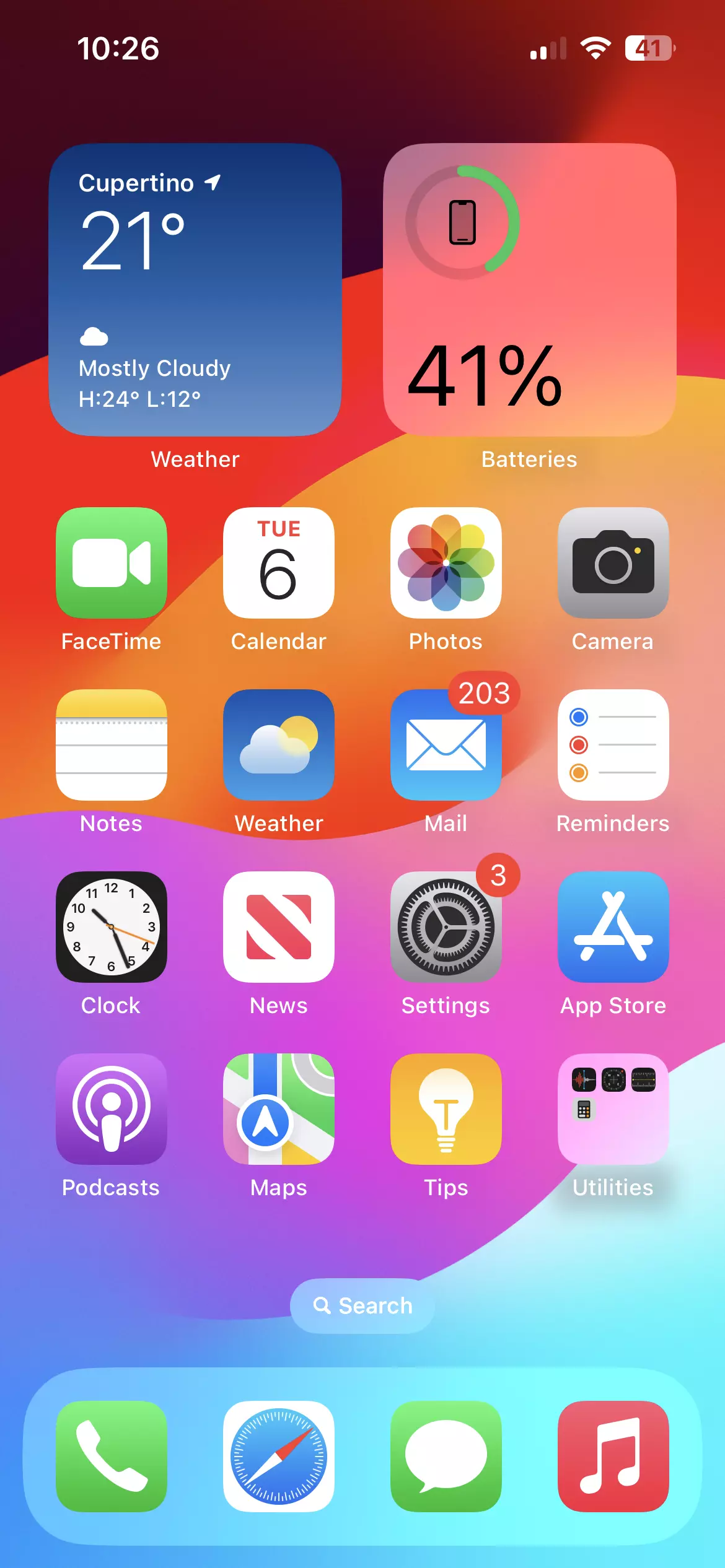
The iOS 17 update brings substantial changes to how you use your iPhone every day. Apple packed this release with practical communication upgrades, smarter widgets, and fresh customization tools instead of just minor performance tweaks. If you're wondering whether your device supports it or what features actually matter, you're in the right place. Let's break down everything you need to know.
Understanding what changed helps you skip the guesswork and use your phone more efficiently. From StandBy mode turning your idle phone into a smart display to interactive widgets you can tap right from the home screen, this version shifts how software integrates with your routine.
Major New Features in iOS 17
Apple focused heavily on personalization and daily utility this time around. You'll notice the differences right away when calling friends, leaving messages, or charging your device across the room.
StandBy Mode
When your iPhone charges horizontally on a MagSafe or Qi stand, StandBy mode activates automatically. It turns your screen into a glanceable full-screen display showing clocks, calendar appointments, photos, or live sports scores. It's ideal for nightstands or office desks. You can customize different widgets and styles by swiping across the screen. To understand the complete picture, check out the excellent article by CNET.
Contact Posters and NameDrop
Phone calls got a visual overhaul with Contact Posters. You can design a custom image, photo, or Memoji that appears on your friends' screens when you call them. Tied to this is NameDrop, which lets you share contact info simply by holding the top of your iPhone near someone else's iPhone or Apple Watch.
Interactive Widgets
Widgets are no longer just for viewing information. In iOS 17, home screen and lock screen widgets are fully interactive. You can check off items on a Reminders list, control your smart home lights, or play a podcast without ever opening the parent app.
Messages and FaceTime Enhancements
The Messages app reorganized its interface by tucking apps and features behind a clean plus button. Audio messages now include automatic transcriptions, and Check In lets you notify family members automatically when you arrive home safely. If someone misses your FaceTime call, you can now record a video or audio message just like a traditional answering machine.
Supported Devices and Compatibility
Before you try to install anything, you need to check if your iPhone makes the cut. Apple dropped support for a few older models with this release.
- iPhone 15 Series: Fully supported out of the box.
- iPhone 14 Series: Fully supported.
- iPhone 13 Series: Fully supported.
- iPhone 12 Series: Fully supported.
- iPhone 11 Series: Fully supported.
- iPhone XS, XS Max, and XR: Fully supported.
- iPhone SE (2nd generation and later): Fully supported.
If you're using an iPhone 8, iPhone 8 Plus, or iPhone X, you won't receive the iOS 17 update because those devices lack the necessary processing hardware. You can check your exact model by opening your Settings app and heading to General, then About. You can read more about device requirements directly on the Apple Support page.
How to Install the Update Safely
Installing a major operating system update takes about fifteen to thirty minutes depending on your internet connection. Following a few precautions prevents data loss or failed downloads.
- Connect your iPhone to a reliable Wi-Fi network to avoid burning through cellular data.
- Plug your phone into a charger or make sure your battery sits above 50 percent.
- Open your Settings app and tap General.
- Select Software Update and wait for the system to check for available updates.
- Tap Update Now or Install Now, then enter your device passcode when prompted.
If you don't see the option immediately, don't panic. Apple rolls out these updates gradually to manage server traffic. You can also connect your phone to a Mac or PC running iTunes or Finder if you prefer updating via a computer cable. For official documentation on backing up your device beforehand, consult the Apple backup guide.
Common Issues and Quick Fixes
Even smooth software rollouts hit occasional snags. Here are a few hiccups users frequently encounter after updating, along with simple ways to fix them.
- Battery drain after updating: Your iPhone runs background indexing and photo analysis for 24 to 48 hours after installation. This temporary surge in battery usage usually settles down on its own.
- Stuck on "Preparing Update": If the progress bar freezes, force-close the settings app or restart your phone. Make sure you have at least 5GB of free storage space available.
- Wi-Fi dropping out: Reset your network settings by going to Settings, General, Transfer or Reset iPhone, Reset, and choosing Reset Network Settings.
Frequently Asked Questions
Does iOS 17 slow down older compatible iPhones?
Apple optimizes each release for supported hardware, but older devices like the iPhone XR or iPhone 11 may experience slight interface stuttering. Disabling background app refresh for non-essential apps helps preserve performance on legacy devices.
How much storage space do I need for the installation?
You typically need between 3GB and 6GB of free space depending on your specific phone model. If your storage is packed, offload unused apps before starting the download.
Can I downgrade back to iOS 16 if I don't like it?
Apple stops signing older software versions shortly after releasing a major update. Once you're on iOS 17, downgrading back to iOS 16 official builds is generally not possible.
Is the update free?
Yes, the iOS 17 update is completely free for all supported iPhone owners. Never pay a third party or download external profiles claiming to offer early access.



