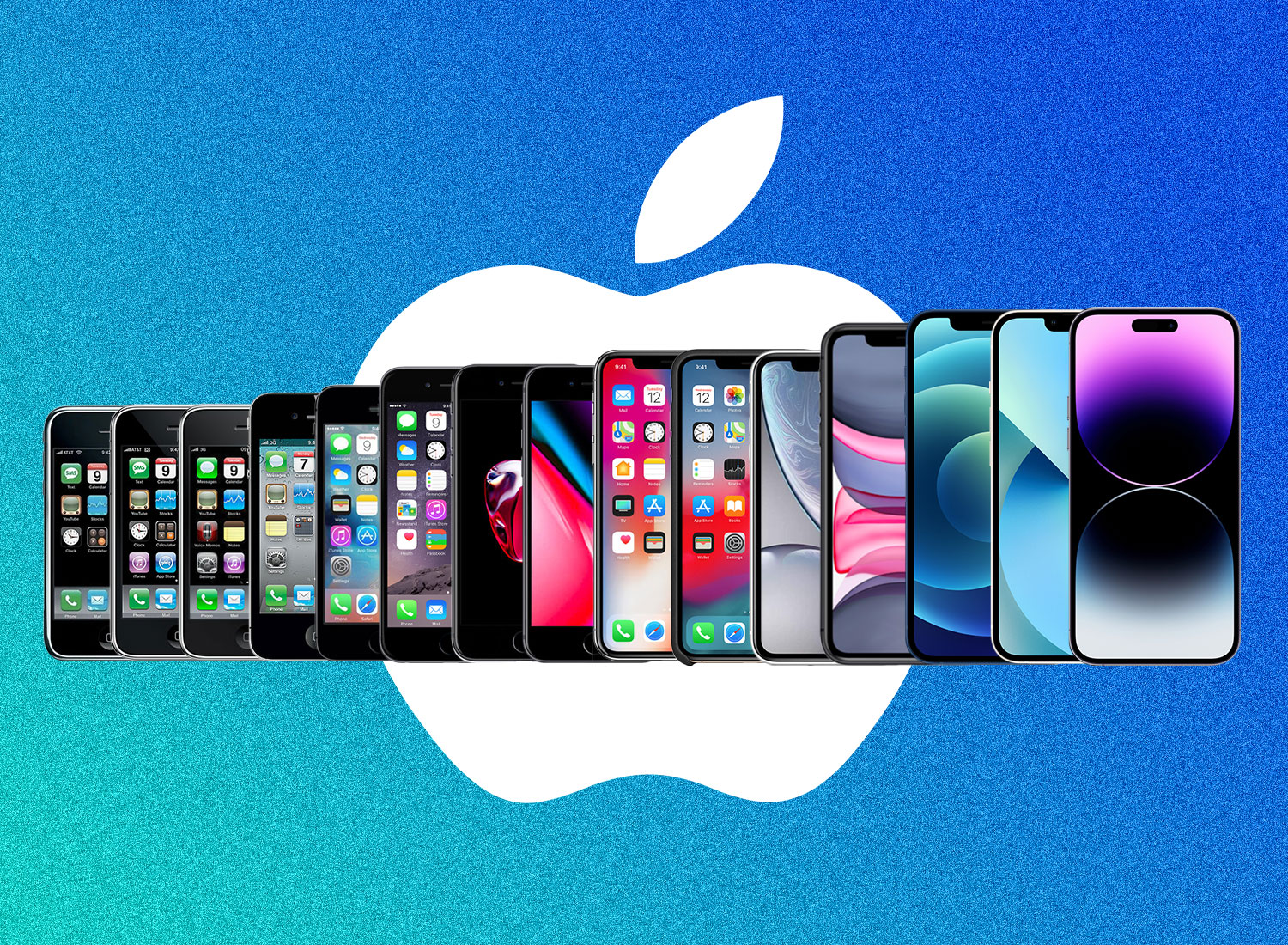
Which iPhones Support iOS 17?
Apple’s software architecture shifts with every major release, and finding out if your phone made the cut matters before you try to download new updates. The iOS 17 compatible devices lineup drops support for a few older generation handsets while keeping a massive range of hardware functional. If you own an iPhone XS, an iPhone XR, or any newer model released by Apple, your phone supports iOS 17.
The main hardware requirement centres on the A12 Bionic chip or newer. Phones running the older A11 Bionic processor—specifically the iPhone 8, iPhone 8 Plus, and the landmark iPhone X—were left off the compatibility list. Checking your exact model ensures you don't waste time troubleshooting failed software downloads or looking for features your hardware can't run.
The Complete iOS 17 Compatibility List
To see where your specific handset stands, check the breakdown below. Apple organized this release to support devices spanning several generations back, though some advanced processing features require newer internal chips.
- iPhone 15, iPhone 15 Plus, iPhone 15 Pro, and iPhone 15 Pro Max
- iPhone 14, iPhone 14 Plus, iPhone 14 Pro, and iPhone 14 Pro Max
- iPhone 13, iPhone 13 mini, iPhone 13 Pro, and iPhone 13 Pro Max
- iPhone 12, iPhone 12 mini, iPhone 12 Pro, and iPhone 12 Pro Max
- iPhone 11, iPhone 11 Pro, and iPhone 11 Pro Max
- iPhone XS and iPhone XS Max
- iPhone XR
- iPhone SE (2nd generation or later)
If your model appears on this roster, your device meets the baseline hardware criteria. You can head straight to your settings menu to initiate the upgrade process. Gizmodo has analyzed this fascinating subject in great detail.
Why Older iPhones Got Dropped
Software support cycles don't last forever. When Apple drops support for older devices, it usually comes down to silicon limitations, neural engine capacities, and memory bandwidth.
The A12 Bionic Baseline
The A12 Bionic chip introduced a dedicated Neural Engine that paved the way for advanced machine learning tasks on mobile devices. iOS 17 relies heavily on on-device machine learning for features like live voicemail transcriptions, predictive text improvements, and intelligent photo searching. The A11 Bionic chip inside the iPhone X and iPhone 8 generation lacked the specific hardware blocks required to run these continuous background machine-learning algorithms efficiently without draining the battery instantly.
RAM and Thermal Constraints
Modern operating systems demand higher random-access memory to handle background multitasking, graphics rendering, and security sandboxing. Older devices with 3GB of RAM or less struggle to keep up with the memory footprints of modern apps running on top of an advanced OS framework. Apple cuts off older models to maintain baseline performance standards, ensuring that users don't experience severe battery degradation, sluggish user interfaces, or thermal throttling.
How to Check Your iPhone Model and Storage
Before installing a major operating system update, you need to verify your exact model name and ensure you have enough free space available on your local storage drive. Major updates often require between 5GB and 10GB of temporary breathing room during the unpacking and installation phase.
- Open the Settings app on your iPhone.
- Tap on General, then select About.
- Look at your Model Name to confirm your exact device generation.
- Go back to the main General menu and tap iPhone Storage to check your available gigabytes.
If your storage is nearly full, delete unused apps, offload old messages, or back up large video files to iCloud before starting the download. Running out of space mid-installation is the primary cause of update loops and recovery mode errors.
Common Update Mistakes to Avoid
Jumping straight into a major operating system update without preparation often leads to frustrating errors. Watch out for these common missteps:
- Skipping the backup: Always back up your phone to iCloud or a computer via Apple Support before updating. If something interrupts the installation, your data stays safe.
- Using weak Wi-Fi networks: Large update files require a stable, high-speed internet connection. Dropped packets during a download corrupt the installation package.
- Updating on low battery: Keep your phone plugged into a power source during the entire installation process. If the battery dies while writing system files to the flash memory, the phone may require a factory restore.
Frequently Asked Questions
Can the iPhone X get iOS 17?
No. The iPhone X uses the A11 Bionic processor, which does not meet the minimum hardware requirements for iOS 17. Its final major software version is iOS 16.
Do all compatible iPhones get every single iOS 17 feature?
No. While your phone might run iOS 17, certain hardware-intensive features—such as specific camera processing modes or advanced neural capabilities—may be restricted to newer device tiers like the iPhone 12 lineup and above.
How much free space do I need to install iOS 17?
You generally need at least 6GB to 8GB of free storage space available. If your phone lacks space, the system will temporarily ask permission to remove apps automatically and reinstall them afterward.
Will updating to iOS 17 slow down my older iPhone?
Apple optimizes updates to run smoothly on all supported hardware, but older batteries that have degraded past 80% maximum capacity may trigger performance management features to prevent unexpected shutdowns. Check your battery health in settings before updating.



