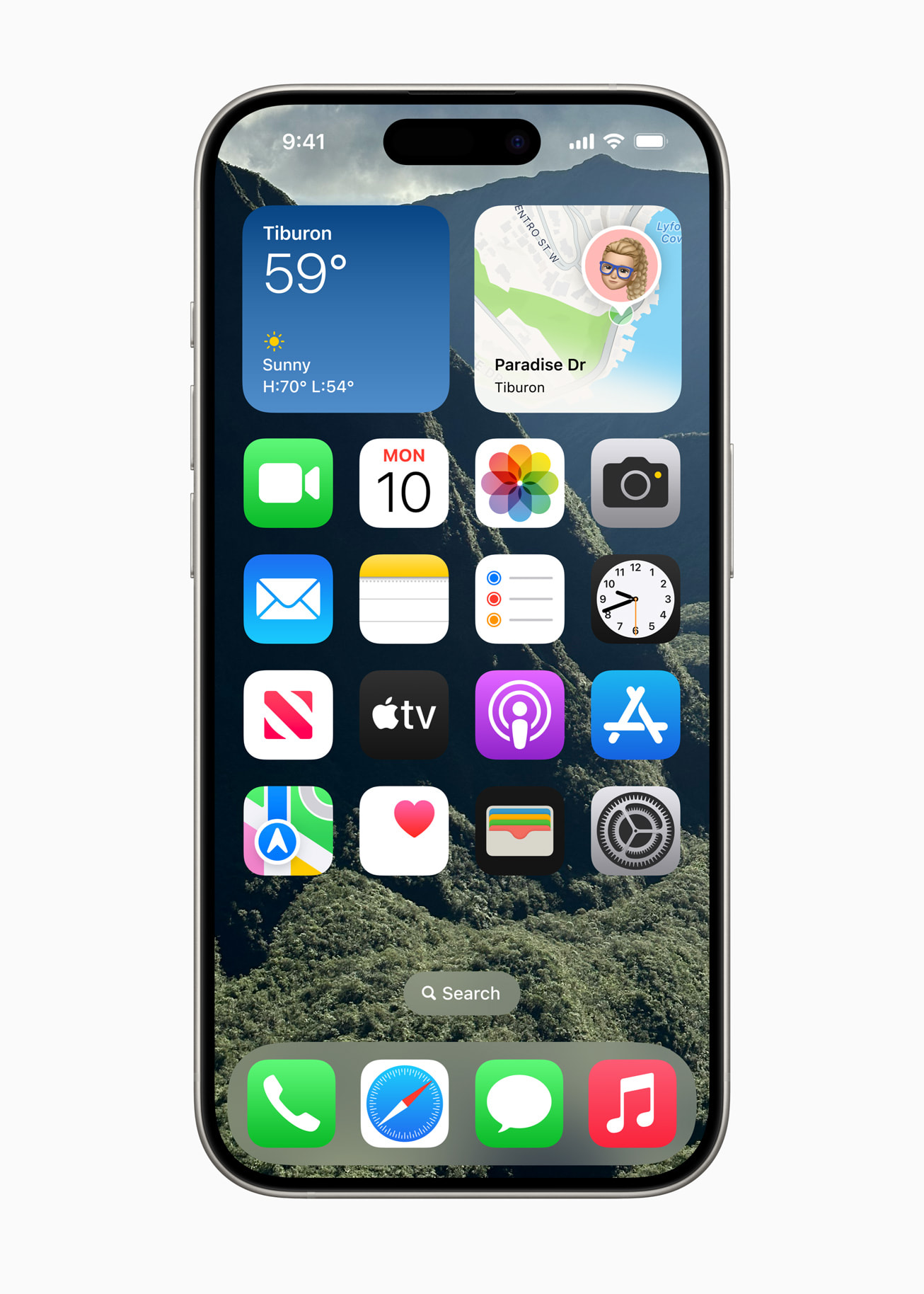
Apple released iOS 15 to overhaul how you handle daily communication, focus, and information retrieval on your iPhone. Instead of minor visual tweaks, this major operating system upgrade introduced systemic tools like Focus modes, Live Text extraction from camera inputs, and cross-platform FaceTime capabilities. Whether you're upgrading an older handset or configuring a fresh device, knowing how these capabilities function changes your day-to-day workflow.
This breakdown covers the foundational changes introduced in iOS 15, how to configure them for maximum utility, and answers common functional questions that initial release notes glossed over.
Master Your Attention With Focus Modes
Managing constant app pings remains one of the biggest challenges on modern mobile devices. iOS 15 replaced the old Do Not Disturb toggle with granular Focus modes, allowing you to filter notifications based on what you're doing.
Setting Up Custom Focus Profiles
You can build distinct profiles for work, personal time, sleeping, or custom tasks. Each profile dictates which apps can interrupt you and which contacts are allowed to ring through.
- Open the Settings app on your iPhone and tap Focus.
- Tap the plus icon in the top right corner to create a new profile or select a pre-made template like Work or Driving.
- Choose allowed contacts by tapping People, then select specific individuals whose calls or messages bypass the filter.
- Choose allowed apps by tapping Apps, then add utilities like Slack or your mail client while excluding social media distractions.
- Toggle Focus Status on if you want apps to let message senders know you're currently silencing alerts.
Setting Automation Rules
You don't have to toggle these profiles manually every time you walk into an office or sit down to read.
- Time-based triggers: Set your Work focus to turn on automatically Monday through Friday at 9:00 AM.
- Location-based triggers: Configure your personal focus to activate the moment you arrive home.
- App-based triggers: Launch an e-reader or drawing app, and watch your device automatically suppress external notifications.
Live Text and Visual Lookup
Your camera app and photo library gained optical character recognition capabilities in iOS 15, letting you digitize physical text and analyze images instantly.
How Live Text Works
When you point your camera at a Wi-Fi password printed on a router, a restaurant menu, or a handwritten note, a small brackets icon appears in the bottom corner of the viewfinder. Tapping that icon isolates the text, letting you copy, paste, translate, or look up definitions without typing a single character.
You can also use Live Text directly inside your existing photo library. Open any saved image containing text, drag your finger across the words to highlight them, and tap Copy to drop them into Notes or Messages.
Visual Lookup Details
Swipe up on any photo in your library, or tap the small info badge with stars. If your iPhone recognizes art, plant species, landmarks, or popular dog and cat breeds, it pulls up knowledge cards from Siri to give you instant identification details.
FaceTime and SharePlay Enhancements
Apple expanded FaceTime from a simple peer-to-peer video app into a utility that rivals desktop conferencing software, adding web links and shared media playback.
Cross-Platform Calling Links
You no longer need to restrict video calls strictly to Apple ecosystem users. Inside FaceTime, tap Create Link and share the resulting URL via text, WhatsApp, or email. Android and Windows users can open that link in a standard web browser like Chrome or Edge to join the secure video stream without downloading an app.
Synchronized Media via SharePlay
SharePlay lets you watch movies, stream TV shows, or listen to Apple Music playlists synchronously with friends during a FaceTime call. Playback controls sync automatically across all participants, meaning if one person pauses the video, it pauses for everyone on the call.
Safari Redesign and Tab Management
Safari underwent a significant interface shift, moving the address bar to the bottom of the screen by default to make one-handed thumb navigation easier on larger devices.
- Tab Groups: Swipe horizontally across the address bar to switch between open pages instantly, or organize tabs into named groups that sync across your iPad and Mac.
- Pull to Refresh: Pull down from the top of any webpage to force a manual reload.
- Extension Support: Install content blockers and developer extensions directly into mobile Safari for the first time.
If you dislike the bottom address bar layout, you can revert to the traditional top layout anytime by tapping the "aA" icon in the address bar and selecting Show Top Address Bar, or by visiting Safari settings.
Notification Summaries
Instead of letting individual alerts interrupt you all day long, iOS 15 introduced Notification Summary. This feature bundles non-urgent notifications and delivers them to your lock screen at designated times you choose, such as once in the morning and once in the evening. Critical alerts, direct messages, and phone calls still break through immediately, ensuring you never miss time-sensitive communications.
Frequently Asked Questions
Can older iPhone models run iOS 15?
Apple supported a wide range of legacy hardware with this release. Devices stretching as far back as the iPhone 6s and the original iPhone SE received the software update, though certain hardware-dependent features like Live Text require an iPhone with an A12 Bionic chip or newer.
How do I revert the Safari address bar back to the top?
Open the Settings app, scroll down and tap Safari, then look under the Tabs section. Switch the option from Tab Bar to Single Tab to restore the traditional top address bar layout.
Do non-Apple users need an Apple ID to join a FaceTime call?
No. When an Android or Windows user opens a FaceTime link in their web browser, they simply type in a display name and click Continue to enter the browser-based room.
Does Focus mode sync across all my Apple devices?
Yes. If you enable a Focus profile on your iPhone, iCloud automatically propagates that state to your iPad and Mac, provided you're signed in with the same Apple ID and have Share Across Devices turned on in your settings.
What happened to the old Do Not Disturb button?
Do Not Disturb is now integrated as a core profile inside the broader Focus menu. You can still access a quick toggle for it by opening the iOS Control Center and tapping the Focus button.


