Managing your digital correspondence shouldn't feel like a chore. If you're embedded in the Apple ecosystem or looking for a clean, ad-free inbox, iCloud Mail offers a compelling alternative to mainstream webmail providers like Gmail or Outlook. It brings together clean design, deep hardware integration, and robust privacy features without charging a direct subscription fee for basic storage tiers.
Getting the most out of your inbox requires understanding how it handles security protocols, custom domains, and daily organization. While it lacks some of the hyper-customizable extensions found on other platforms, it excels at keeping your data private and synchronizing messages instantly across your iPhone, iPad, and Mac.
Core Features and Ecosystem Integration
Unlike standalone webmail clients that require separate login credentials and app installations, iCloud Mail functions as a native extension of your Apple ID. When you set up an Apple device, your mail account is ready to activate with a single toggle.
Messages sync instantly across hardware using Apple's push notification architecture. If you read or delete an email on your Mac, that change reflects on your phone within milliseconds. Beyond basic synchronization, the service includes several built-in tools to manage heavy traffic:
- VIP Mailboxes: Designate specific senders as VIPs so their messages bypass standard notification filters and land in a dedicated priority folder.
- Smart Mailboxes: Create custom filter criteria on macOS that automatically group messages by sender, attachments, or date without moving them out of your main archive.
- Custom Email Rules: Set up server-side rules via iCloud.com to automatically sort, flag, or forward incoming messages before they ever hit your device.
For users managing multiple email addresses, you can create up to three active email aliases under a single account. This lets you separate personal correspondence from online shopping or newsletter sign-ups without managing multiple login credentials.
Privacy Protocols and Security Measures
Privacy remains the primary differentiator for Apple's messaging platform. Competitors often scan email content to build targeted advertising profiles or train automated features. Apple takes a different approach by implementing end-to-end encryption standards and strict data minimization policies.
Security relies heavily on Two-Factor Authentication (2FA) tied to your Apple ID. If you log into your mail client on a non-Apple device or via a web browser, you must approve the login request on a trusted device. Furthermore, you can generate App-Specific Passwords for third-party clients like Microsoft Outlook or Mozilla Thunderbird, ensuring your main account password stays protected.
Another major security asset is Hide My Email. Instead of handing out your primary address to sketchy web forms or online stores, you can generate unique, random burner addresses on the fly. Any mail sent to those burner addresses forwards automatically to your real inbox, and you can deactivate a compromised alias instantly with a single tap.
Setting Up Custom Domains and Aliases
Many users assume an @icloud.com address is mandatory, but Apple allows you to connect a custom domain to your account. If you own a personal domain through a registrar like Cloudflare or Namecheap, you can route your custom email addresses directly through iCloud.
To set up a custom domain:
- Navigate to your Apple ID settings on iCloud.com or via your iOS device settings.
- Select the iCloud Mail section and locate the Custom Email Domain menu.
- Enter your domain name and follow the prompts to update your DNS records (MX, TXT, and CNAME records) with your domain registrar.
- Add family members to the domain if you want to share custom email addresses across your household.
This feature allows you to maintain professional branding or a clean family domain name without paying for a separate business hosting package. You can send and receive mail using your custom domain across all your synced Apple devices seamlessly.
Common Mistakes to Avoid
Transitioning your primary correspondence to a new provider can lead to friction if you don't plan ahead. Watch out for these frequent missteps:
- Forgetting App-Specific Passwords: Trying to log into a third-party desktop client using your main Apple ID password will fail if 2FA is active. Always generate a dedicated app-specific password.
- Ignoring Storage Limits: The free tier provides 5GB of shared storage across iCloud backups, photos, and mail. If you receive large attachments frequently, you will exhaust this space quickly unless you upgrade to iCloud+ or clean your trash regularly.
- Mismanaging Aliases: Deleting an email alias permanently destroys that address. If you use an alias for important account registrations, disable it rather than deleting it if you might need to recover verification codes later.
For official documentation on storage upgrades and account management, check the Apple Support Guide. To understand broader email security standards, review the guidelines published by the Cybersecurity and Infrastructure Security Agency.
Frequently Asked Questions
Can I use iCloud Mail on a Windows PC or Android device?
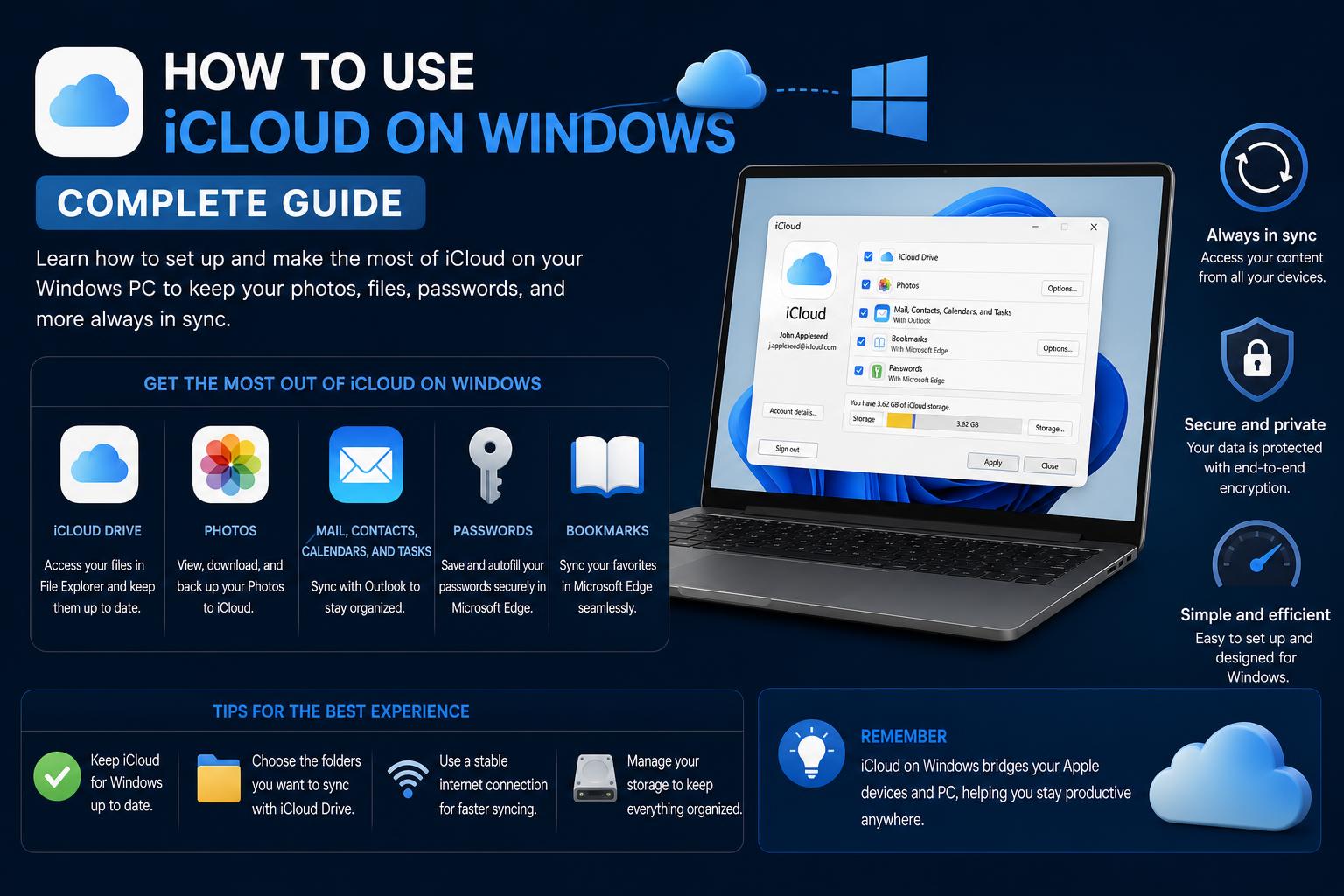
Yes. While it works best within the Apple ecosystem, you can access your inbox from any web browser by logging into iCloud. You can also configure the account on Windows using Outlook or any IMAP-compatible mail client by generating an app-specific password.
What happens to my emails if I run out of storage space?
When your iCloud storage hits capacity, incoming messages will bounce back to the sender with a delivery failure notice. Apple does not store them in a holding queue, so you must either delete older messages, empty your trash, or upgrade your storage plan to resume receiving mail.
How do I stop spam messages from reaching my inbox?
Apple uses automated filters to route suspicious messages to your Junk folder. If spam slips through, open the message, tap the folder icon, and move it to Junk to train the filter. For untrusted websites, use the Hide My Email feature instead of your real address to prevent spam at the source.
Can I migrate my old emails from Gmail to iCloud?
Yes. You can add both your Gmail account and your iCloud account to Apple Mail on a macOS computer. Once both accounts are active, you can select your old messages and drag them directly into your iCloud inbox folders to transfer your archive.



