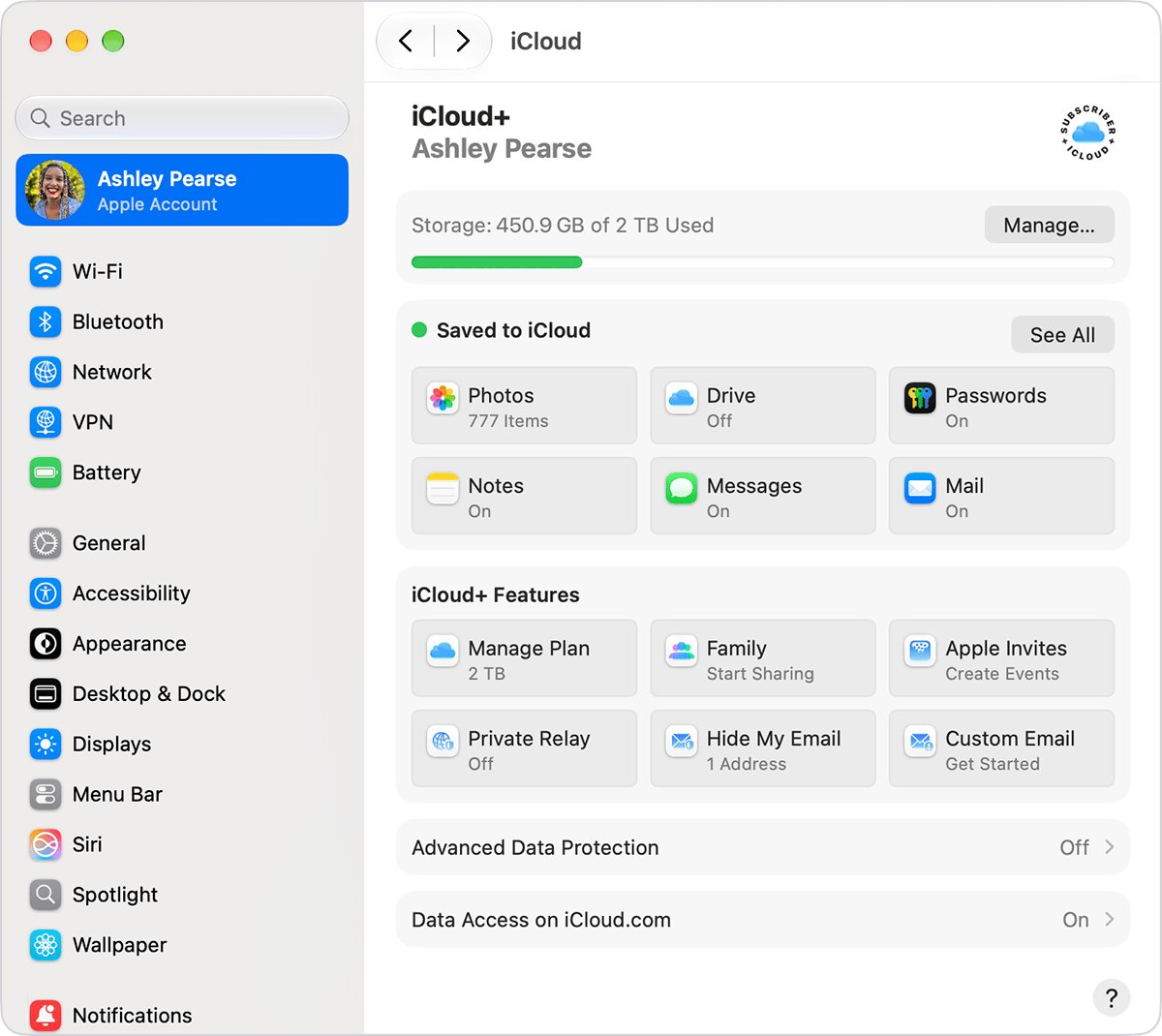
Managing digital storage and media subscriptions for an entire household doesn't have to drain your bank account. Apple's Family Sharing allows up to six family members to share a single iCloud+ storage plan, app purchases, and subscriptions without sharing personal Apple IDs or private files. Instead of everyone paying for separate 50GB or 200GB tiers, pooling resources cuts monthly costs significantly while keeping personal photos, texts, and notes completely private.
Setting up the system requires an upgrade to at least the 200GB iCloud+ plan ($2.99 per month) or an Apple One bundle. Once configured, the organizer invites members, manages shared features, and distributes available gigabytes across everyone's devices.
Understanding iCloud Family Sharing Pricing and Storage Tiers
You can't share the free 5GB iCloud tier or the single-user 50GB plan ($0.99/mo) with a family group. Sharing kicks in at the 200GB iCloud+ tier, which costs $2.99 per month, or the massive 2TB tier priced at $9.99 per month.
- 50GB Plan ($0.99/mo): Single user only; cannot be shared with family members.
- 200GB Plan ($2.99/mo): The baseline option for families, ideal for backups and photo libraries across 2 to 4 light users.
- 2TB Plan ($9.99/mo): Best for larger families or multi-device households that hoard videos and high-resolution photos.
- 6TB Plan ($29.99/mo): Built for heavy power users with massive media archives.
- 12TB Plan ($59.99/mo): Designed for extreme storage needs and professional workflows.
Alternatively, you can choose an Apple One bundle to combine storage with services like Apple Music and Apple TV+. The Apple One Family plan costs $27.95 per month and includes 200GB of shared storage, while the Premier plan costs $39.95 per month and steps storage up to 2TB.
How Storage Pooling Works
When you share an iCloud+ plan, you aren't dividing the storage into rigid slices like 50GB per person. Instead, the group pulls from a central bucket.
If you subscribe to the 2TB plan, that entire 2TB pool is available to the group. If one person uses 400GB for video projects, the remaining 1.6TB stays open for the other five members. Apple keeps everyone's individual data strictly segregated. Nobody in the group can see your photos, notes, backups, or browsing history just because you share a storage plan.
Step-by-Step Setup Guide
Getting your group up and running takes just a few minutes directly from an iPhone, iPad, or Mac.
Step 1: Create the Family Group
- Open the Settings app on your iPhone or iPad.
- Tap your Apple ID name at the top of the screen.
- Tap Family Sharing, then tap Set Up Your Family.
- Follow the on-screen prompts to invite your first family members via Messages or email.
Step 2: Upgrade Your iCloud Storage
If you currently use the free 5GB tier or the 50GB plan, you'll need to upgrade before sharing.
- Go back to your Apple ID settings menu and tap iCloud.
- Tap Manage Storage Account or Buy More Storage.
- Select either the 200GB or 2TB plan and confirm the purchase.
Step 3: Turn on Storage Sharing
- Return to Settings, tap your name, and select Family Sharing.
- Tap iCloud+ under the shared features list.
- Tap Share with Family and follow the prompts to confirm that you want your family members to use your upgraded storage pool.
Maximizing Savings Beyond Storage
Storage is only part of the equation. Family Sharing lets you split the cost of other digital subscriptions, preventing household members from buying duplicate apps or media.
- Purchase Sharing: When enabled, one designated adult (the organizer) pays for app store purchases, books, and eligible subscriptions initiated by family members using a shared credit card.
- Subscription Splitting: Subscribing to Apple Music or Apple Arcade through a Family plan costs significantly less than buying individual subscriptions for every person in the house.
- Location and Screen Time: You can coordinate schedules by sharing locations and managing downtime or app limits for children in the household.
Common Pitfalls to Avoid
Avoid these frequent mistakes to ensure a smooth sharing experience:
- Using Personal Apple IDs for Kids: Don't let children use your main Apple ID. Set up a dedicated child account so their data remains independent and easy to transition later.
- Forgetting Purchase Approvals: If you have teenagers who buy apps or games, turn on Ask to Buy so charges don't surprise you on the shared payment method.
- Running Out of Space Unnoticed: Keep an eye on storage consumption. If a family member backs up multiple old devices into the shared pool, it can deplete the bucket faster than expected.
Frequently Asked Questions
Can family members see my personal files if we share iCloud storage?
No. While you share the physical gigabytes of storage space, your files, photos, backups, and passwords remain entirely private. No other member can access your personal data.
What happens if I want to leave the family group?
If you leave a family group or the organizer cancels the shared plan, you return to the free 5GB tier. If your personal data exceeds 5GB, you have a grace period to download your files or subscribe to your own paid storage plan before Apple deletes anything.
Can family members be part of more than one family group?
No. An Apple ID can only belong to one Family Sharing group at a time. To switch groups, you must leave your current group and wait out a brief system cooldown period before joining another.
Do children need their own devices to participate?
No. Children can be part of the family group and share storage or subscriptions on a shared iPad or household device, though individual accounts are recommended for privacy and parental controls.



