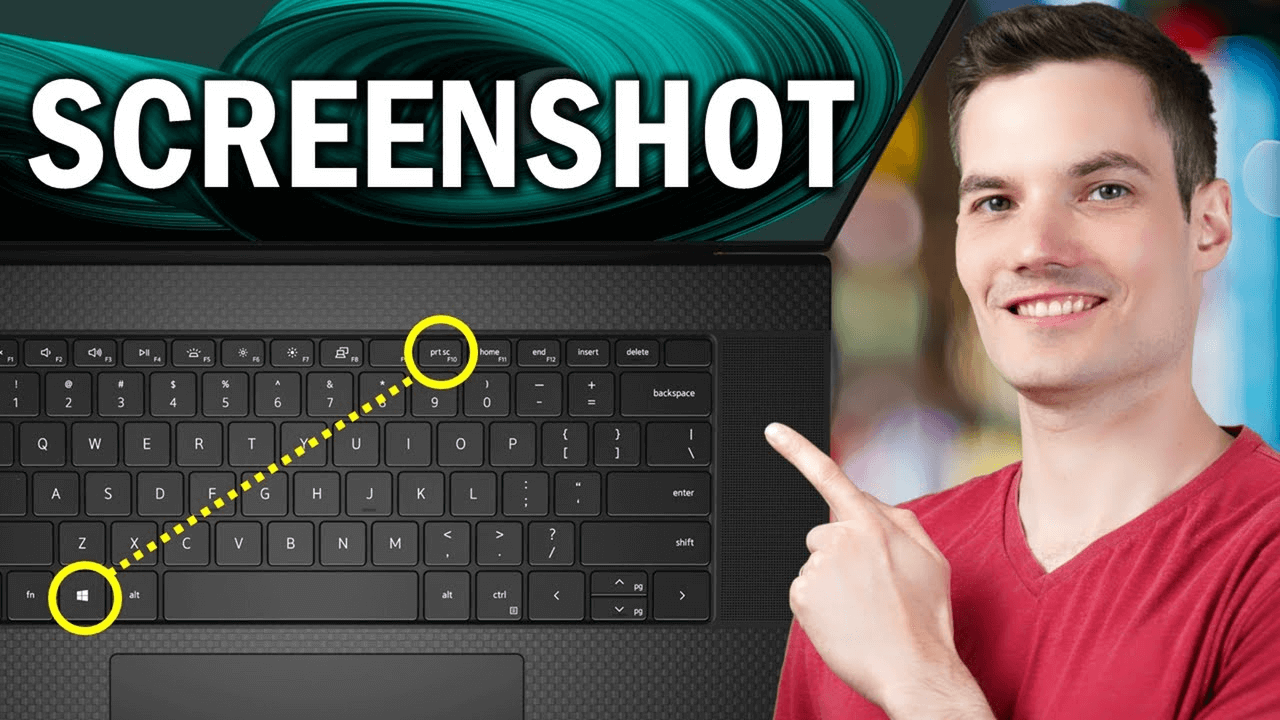
Taking a screenshot on a compact 60 percent keyboard requires a quick shift in your usual habits because the dedicated Print Screen key is missing. Without that single key, you'll need to use native operating system shortcuts, built-in function layer combinations, or custom key remapping.
If you're on Windows, the fastest native method is pressing Windows + Shift + S to launch the Snipping Tool directly. On macOS, standard capture commands like Command + Shift + 3 or Command + Shift + 4 work immediately since they don't rely on function keys.
Why 60 Percent Keyboards Lack a Print Screen Key
A standard full-size keyboard packs around 104 keys, featuring a dedicated number pad, a row of function keys, and a navigation cluster with Insert, Delete, Home, End, Page Up, Page Down, and Print Screen. A 60 percent keyboard strips away roughly 40 keys to save desk space and improve ergonomic posture by keeping your mouse closer to your hands.
Manufacturers sacrifice the physical Print Screen key along with the entire top function row. To access missing keys, these compact boards rely on a secondary layer accessed by holding an Fn key. If your specific model doesn't program Print Screen into its default secondary layer, standard printing requires alternative methods.
How to Screenshot on Windows
Windows offers several robust ways to capture your screen without ever touching a physical Print Screen key.
Using the Snipping Tool Shortcut
The most reliable method on Windows 10 and Windows 11 is the built-in snipping shortcut:
- Press Windows + Shift + S simultaneously.
- The screen dims and a small toolbar appears at the top.
- Choose your capture type: rectangular, freeform, windows, or full screen.
- Drag your cursor to select the desired area.
- Click the notification pop-up in the bottom right corner to edit and save your image, or paste it directly using Ctrl + V into an open app.
Using Fn Layer Combinations
Many mechanical 60 percent keyboards program a Print Screen shortcut into their firmware layer. Check your user manual or keycap legends for secondary symbols. Common combinations include:
- Fn + I or Fn + P (varies by brand like Ducky, Keychron, or Anne Pro).
- Fn + Alt + i or similar modifier clusters.
Once activated via the function layer, the screen captures to your clipboard or saves automatically if paired with the Windows key. For official documentation on Windows shortcuts, check Microsoft Support.
How to Screenshot on macOS
Mac users transitioning to a compact layout face fewer hurdles because macOS shortcuts avoid the Print Screen key entirely.
Full Screen and Region Captures
- Press Command + Shift + 3 to instantly capture your entire screen and save the image directly to your desktop.
- Press Command + Shift + 4 to turn your cursor into a crosshair, allowing you to click and drag a precise selection box.
- Press Command + Shift + 5 to open the native screenshot and screen recording toolbar, where you can choose specific windows or set timers.
Configuring External Keyboards
If you're using a Windows-formatted 60 percent mechanical keyboard on a Mac, the Windows key maps automatically to the Command key by default. You can verify or adjust modifier keys by opening System Settings, navigating to Keyboard, and checking your keyboard shortcuts. For deep dives into macOS hardware compatibility, visit Apple Support.
Remapping Your Keys for One-Key Access
If you take dozens of screenshots daily, holding down multi-key combinations slows you down. You can remap your 60 percent keyboard to give yourself a dedicated screenshot key.
Using VIA or QMK Software
If your keyboard supports open-source firmware like VIA or QMK, remapping takes less than a minute:
- Connect your keyboard via USB and open the VIA web app or desktop software.
- Navigate to the Keymap tab.
- Select the key you want to replace, such as a rarely used right-side modifier or the menu key.
- Assign the Print Screen macro or standard screenshot function to that slot.
- Save your layout to the onboard memory so it works across different computers without software running in the background.
Using Third-Party Software
If your keyboard lacks programmable firmware, you can use software to override key behavior. On Windows, utilities like Microsoft PowerToys allow you to remap any key combination to trigger the Snipping Tool. On macOS, tools like Karabiner-Elements let you assign screen capture commands to single keys or custom tap dances.
Common Mistakes to Avoid
When adapting to a compact keyboard, a few minor slip-ups often cause frustration.
Don't panic if your shortcut isn't registering. Make sure you aren't accidentally holding the wrong modifier key; mixing up Ctrl and Windows on Windows or Control and Command on Mac will cause shortcuts to fail.
Don't skip checking your manufacturer software. Brands like Razer, Corsair, and Logitech provide proprietary apps that let you create macro layers specifically for screen captures.
Don't forget to check your save folders. By default, Windows clipboard snips require manual saving, whereas Mac captures pile up on your desktop unless you redirect them through the screenshot toolbar settings.
Frequently Asked Questions
Can I remap the Fn key itself to take screenshots?
Most keyboards restrict the primary Fn key because it controls the hardware matrix layer. Instead, remap a secondary key like right control, caps lock, or a macro layer key to act as your dedicated capture trigger.
Why does my screenshot capture both monitors in a dual-screen setup?
Full-screen shortcuts capture your entire extended desktop workspace. To grab only your active window or a specific region, use Windows + Shift + S on Windows or Command + Shift + 4 on Mac to isolate the exact area you want.
Do 60 percent keyboards work the same way on gaming consoles?
Connecting a 60 percent keyboard to a PlayStation or Xbox limits custom remapping software. Consoles rely on default USB HID keymaps, meaning you'll need to use the console's native controller shortcuts or check if the console recognizes standard modifier combinations.



