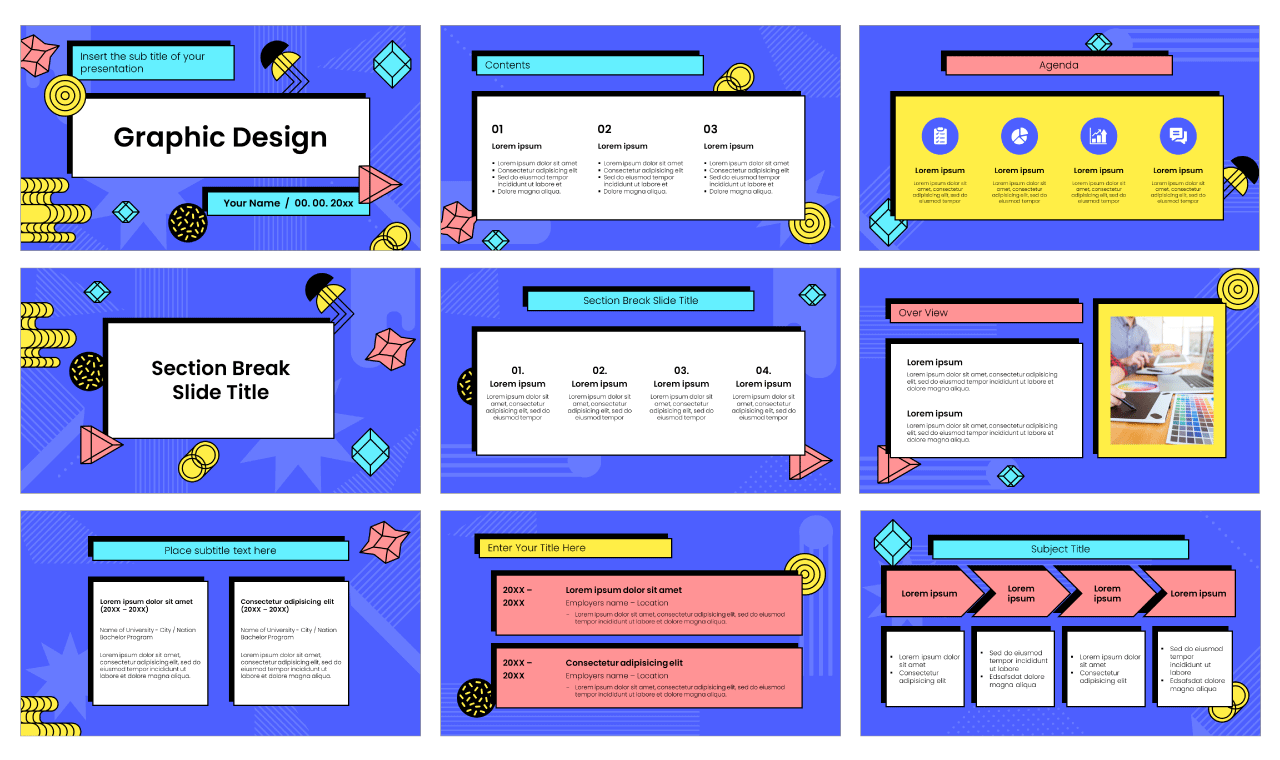
Mastering Microsoft PowerPoint starts with foundational tasks, and knowing how to add a new slide efficiently is the first step toward building clean, organized presentations. Whether you're assembling a quarterly business review or a pitch deck for clients, managing your slide deck shouldn't slow down your creative workflow.
Adding a new slide takes just a fraction of a second once you know the keyboard shortcuts and menu layouts. Let's look at the exact methods to expand your presentation without losing your formatting or flow.
The Fastest Ways to Add a New Slide
You don't need to hunt through menus every time you want to insert a blank canvas. PowerPoint offers multiple built-in shortcuts tailored to different working styles.
Using Keyboard Shortcuts
The absolute fastest way to insert a slide is using your keyboard. While working in the normal editing view, press Ctrl + M on Windows or Command + M on a Mac. This instantly drops a new slide directly below your currently selected slide, matching the layout style of the previous slide automatically.
Using the Ribbon Menu
If you prefer using your mouse, navigate to the Home tab on the top ribbon menu. Look for the Slides group in the upper-left section.
- Click the top half of the New Slide button to insert a default slide instantly.
- Click the bottom half of the New Slide drop-down arrow to choose a specific layout template—such as Title and Content, Two Content, or Comparison—before the slide appears.
Using the Thumbnail Pane
Right-click anywhere in the left-hand thumbnail pane where your slide previews live. Select New Slide from the context menu. This method gives you precise control over exactly where the new slide lands in your deck's sequence.
Choosing the Right Slide Layout
Dropping a blank slide into your deck often creates extra design work later. Selecting the correct layout initially saves time and keeps your typography consistent.
- Title Slide: Best for opening sections or starting a fresh deck.
- Title and Content: The workhorse layout featuring a header and a bulleted or object text box.
- Two Content: Splits the body area into two vertical columns, ideal for comparing text points or pairing text with an image.
- Blank: Gives you total creative freedom for custom shapes, full-bleed images, or native diagramming without default text placeholder boxes getting in the way.
You can always change a slide's layout after creation. Right-click the thumbnail, select Layout, and pick a new template format.
Organizing Slides with Sections
As presentations grow past twenty slides, managing them becomes chaotic. Grouping related slides into custom sections keeps long decks manageable.
Right-click between two slides in the left-hand panel and select Add Section. Name the section something descriptive, like "Financials" or "Q3 Roadmap". You can collapse or expand sections entirely, making it easy to move large blocks of slides around during restructuring.
Common Mistakes to Avoid
Efficiency in presentation design isn't just about speed; it's about avoiding structural errors that frustrate viewers.
- Overusing Blank Layouts: Resist the urge to use blank layouts for everything. Relying on content placeholders ensures your text scaling and bullet formatting remain consistent across different screen sizes.
- Ignoring Slide Structure: Don't crowd too many ideas onto a single slide. If your text list exceeds six bullet points, it's time to hit Ctrl + M and break the information across two distinct slides.
- Inconsistent Formatting: When inserting slides from older presentations using the Reuse Slides feature, make sure to check the "Keep source formatting" box only if you want the original styling. Otherwise, let the slide adopt your current theme automatically.
Frequently Asked Questions
Can I change the default layout when I press Ctrl + M?
Yes. PowerPoint assigns the default layout based on the immediate predecessor slide. If you want a specific layout every time you use the shortcut, duplicate an existing slide of that layout using Ctrl + D instead.
How do I insert slides from another presentation?
Go to the Home tab, click the drop-down arrow under New Slide, and select Reuse Slides. A task pane will open on the right, allowing you to browse external PowerPoint files and insert their slides directly into your current project.
Why does my new slide look different from the rest of the deck?
This usually happens if your presentation uses multiple slide masters or if a custom theme color was manually overridden on an individual layout. Check View > Slide Master to ensure your master layouts match your active theme.
Is there a limit to how many slides a PowerPoint file can hold?
Technically, PowerPoint supports thousands of slides per presentation. However, file size limits, performance slowdowns, and audience fatigue usually become problematic well before you reach triple digits. Keep presentations concise and focused.