Using voice search across English and Indonesian lets you skip manual typing and get quick answers on the go. Whether you're searching the web in English with an Indonesian interface or translating spoken phrases back and forth, knowing how the underlying tools behave saves you from frustrating mistranslations.
Google processes voice inputs through automatic speech recognition engines that map acoustic waves to phonemes, translate the resulting text, and query web indices. When you mix languages, small shifts in accent, microphone distance, or slang can throw off the output. Setting up your device properly and adopting clean dictation habits ensures you get precise, relevant results every single time.
Setting Up Voice Search and Translation
Getting accurate cross-language results starts with correct device and app configurations. If your system language doesn't match your spoken input, Google's speech engine may misinterpret words or default to monolingual search results.
- Open your device Settings app and navigate to system language preferences.
- Add both English and Indonesian (Bahasa Indonesia) as preferred system or keyboard languages, setting your primary interface language as needed.
- Open the Google Translate app, tap the gear icon for settings, and download offline language packs for both English and Indonesian so your voice features work without mobile data.
- Grant microphone permissions in your phone settings to prevent silent recognition failures.
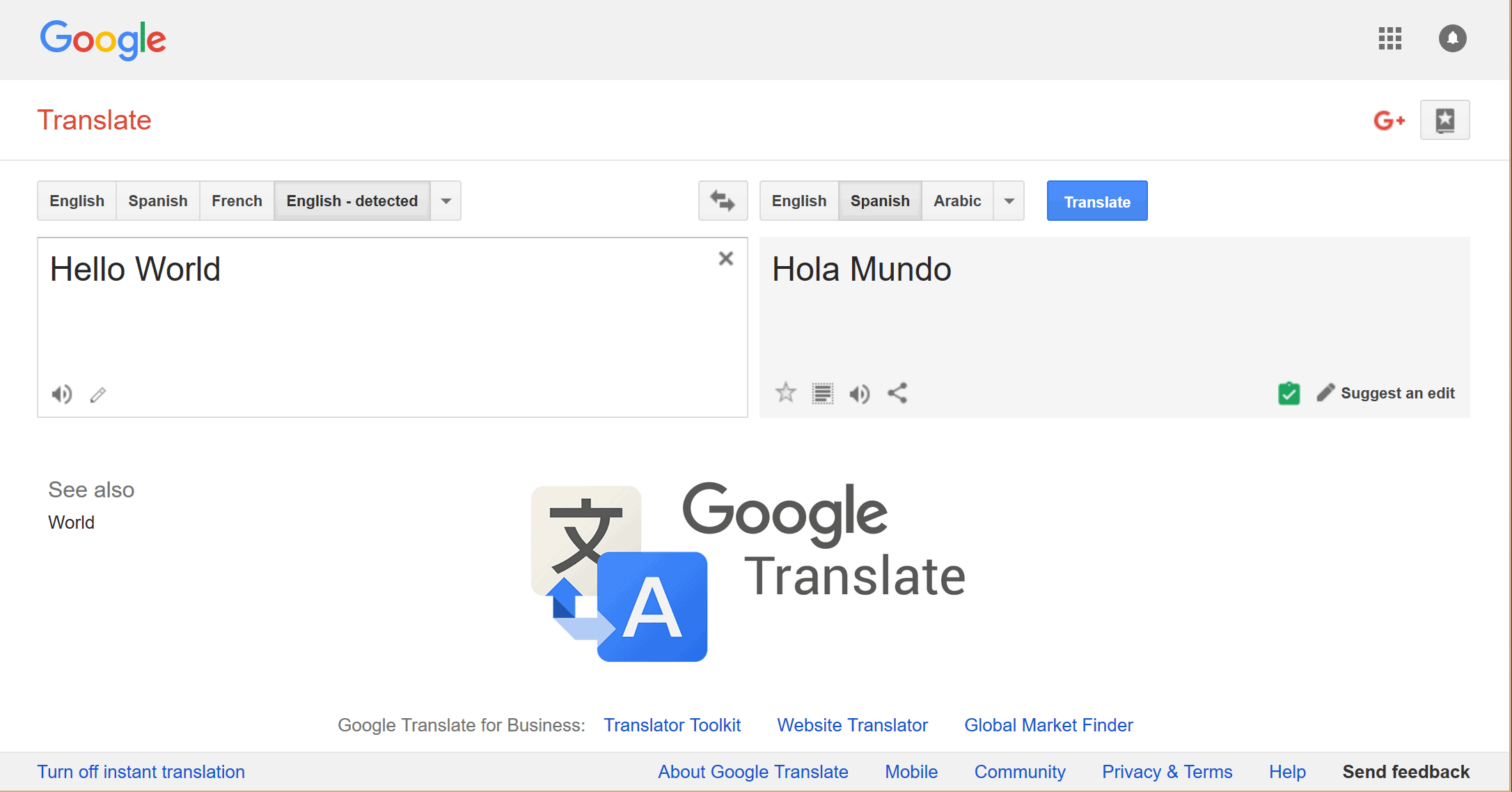
Once configured, the app's home screen gives you instant access to manual and automatic input modes.
Mastering Voice Modes in Google Translate
Google Translate offers specific modes designed for spoken interaction. Knowing when to use each mode keeps your conversations moving smoothly.
- Conversation Mode: Tap the Conversation button to let the app listen continuously. It detects whether you're speaking English or Indonesian, translates the audio instantly, and reads the response aloud in the target language. This works best in quiet rooms with clear turn-taking.
- Transcribe Mode: Use this when listening to lectures, podcasts, or long speeches in either language. It provides a running translated text transcript on your screen in real time.
- Manual Mic Input: Tap the primary microphone icon for short, isolated phrases. This prevents the app from accidentally picking up background noise while you gather your thoughts.
Speak at a steady, conversational pace. Pausing mid-sentence or rushing words causes the speech recognizer to cut off early or guess incorrect word boundaries.
Crafting Voice Queries for Google Search
Google Search handles voice queries differently than the Translate app. Instead of direct phrase translation, search engine voice commands parse your intent and return web pages tailored to your query language.
If your device is set to Indonesian but you want to search the web for English academic sources, saying "Cari artikel bahasa Inggris tentang..." tells the algorithm to prioritize English domains. Conversely, speaking in English while looking for local Indonesian services requires clear keyword placement.
- Explicit Language Triggers: State the target language directly in your voice command, such as "Search Google in English for..." or "Cari info dalam bahasa Indonesia tentang...".
- Keep Queries Concise: Long, complex sentence structures confuse voice parsers. Break multi-part questions into single-focus searches.
- Avoid Filler Words: Skip conversational filler like "um" or "can you please find me". Direct phrases like "Translate English to Indonesian for boarding pass" yield faster, cleaner transcriptions.
Common Mistakes and How to Avoid Them
Even experienced users run into friction when using voice search across different languages. Recognizing these common pitfalls helps you troubleshoot bad results immediately.
- Ignoring Regional Accents: Google's default English models lean toward American or British pronunciations. If you speak English with a heavy regional accent, vowel sounds may be transcribed incorrectly. Enunciating clearly helps bridge this gap.
- Translating Idioms Literally: Direct word-for-word translation of slang or idioms usually results in nonsense. Use standard, neutral phrasing for both English and Indonesian inputs.
- Rushing the Output: Wait for the microphone animation to show active listening before you start speaking. Starting your sentence before the app is ready cuts off the first word or two.
- Neglecting Microphone Maintenance: Dust or phone cases covering your microphone distort audio quality. Clean your device ports if you notice frequent transcription errors.
For more details on mobile search settings, check the Google Search Help portal. If you want to explore broader language tools, visit Google Translate.
Frequently Asked Questions
Can I use voice translation offline between English and Indonesian?
Yes. You must download the offline language packages for both English and Indonesian inside the Google Translate app settings beforehand. Keep in mind that offline voice recognition is slightly less accurate than cloud-processed speech.
Why does Google Translate keep mixing up my languages?
If you're switching back and forth quickly, turn off the Auto-Detect language setting and manually tap the source language icon before you speak. This forces the app to stick to the language you expect.
How do I fix microphone permission errors on Android or iOS?
Go to your phone's system settings, find Apps, locate Google or Google Translate, and tap Permissions. Ensure that microphone access is explicitly set to Allow while using the app.
Does voice search punctuation work in Indonesian?
Voice search handles basic spoken punctuation like commas and periods poorly in bilingual modes. It's best to speak natural phrases without attempting to dictate punctuation marks, then add them manually if needed.



