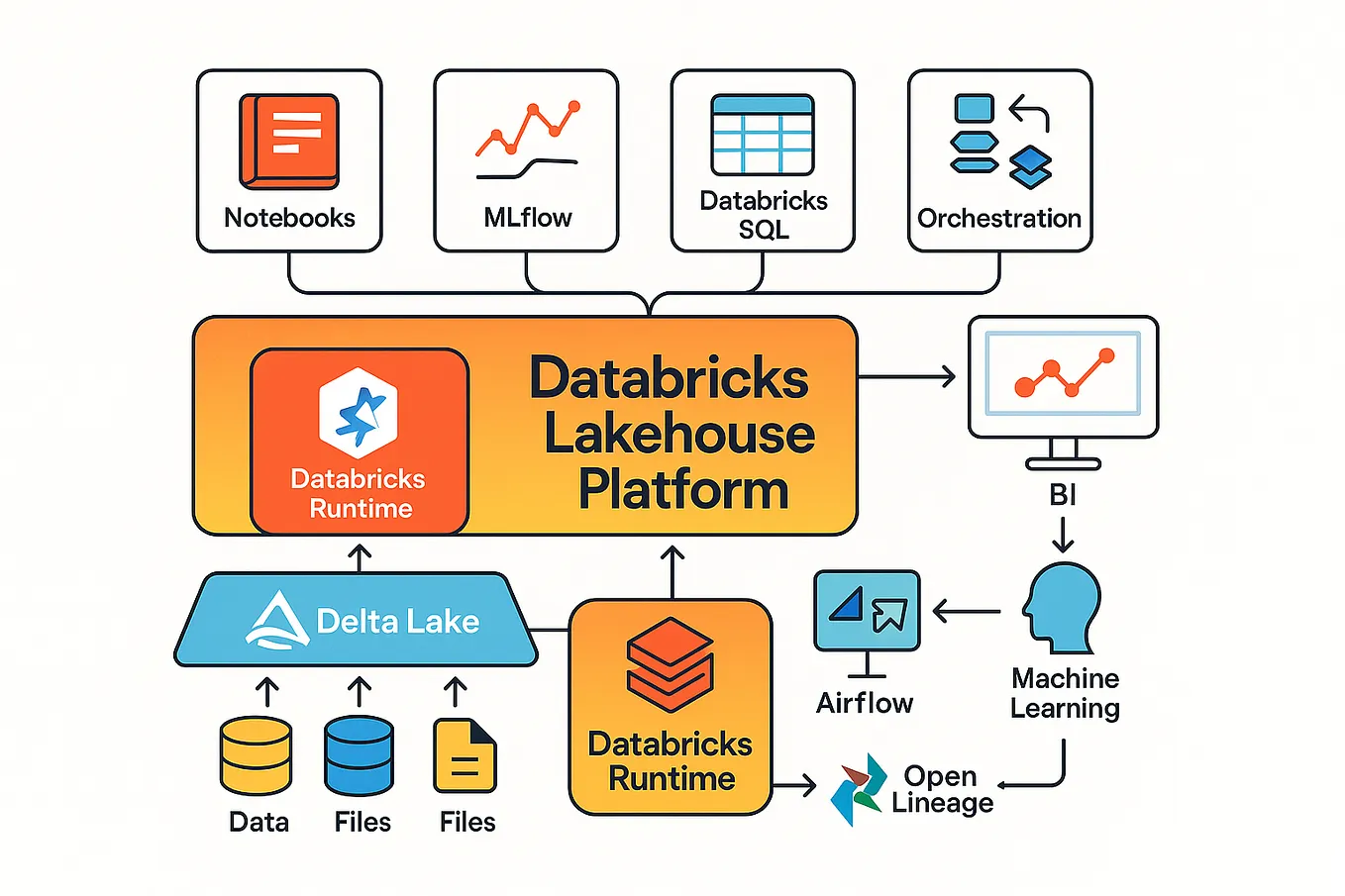
Developing data pipelines and machine learning models directly inside an integrated development environment changes how data teams work. Instead of toggling between web-based notebooks and local codebases, you can connect Microsoft Visual Studio Code straight to your Databricks workspace. This approach brings full support for source control, linting, and local debugging to distributed Spark workloads.
Configuring this environment properly requires installing the Databricks extension, setting up authentication tokens, and mapping your remote compute clusters to your local workspace. Once configured, you can write, test, and execute PySpark code without leaving your editor.
Installing and Configuring the Databricks Extension
To start building data workflows in Visual Studio Code, you need the official Databricks extension from the marketplace. This extension links your local editor environment directly to your Databricks workspace.
- Open Visual Studio Code and navigate to the Extensions view by pressing
Ctrl+Shift+XorCmd+Shift+X. - Search for Databricks and install the official extension provided by Databricks.
- Open the Command Palette (
Ctrl+Shift+PorCmd+Shift+P) and run Databricks: Configure Authentication. - Enter your Databricks workspace URL (for example,
[https://adb-1234567890.12.azuredatabricks.net](https://adb-1234567890.12.azuredatabricks.net)or your AWS equivalent). - Generate a personal access token from your Databricks user settings page and paste it into the prompt when requested.
After authentication succeeds, the extension panel displays your remote workspace files, clusters, and job configurations directly in your sidebar. For official documentation on token generation and workspace setup, refer to the Databricks Authentication Guide.
Connecting VS Code to Remote Clusters
Writing code locally is only useful if you can execute it on scalable compute. You must configure your workspace settings to target an active interactive cluster or job cluster.
Open your workspace settings file (.vscode/settings.json) or use the extension's UI to define your default compute target. You can specify a cluster ID directly so that code execution maps to that specific environment.
- Interactive Clusters: Best for active development, iterative querying, and inline debugging.
- Job Clusters: Ideal for running scheduled automation scripts or heavy data transformation pipelines.
When you open a Python file or notebook within a configured project folder, select your remote compute target from the kernel picker in the top right corner of the editor. This routes your code execution through the Databricks Connect protocol, translating your local Python commands into distributed Spark jobs on the remote cluster. You can read more about underlying protocol architecture in the Databricks Connect Documentation.
Managing Code with Git and Version Control
Web-based notebooks often make code versioning and code reviews difficult. Using Visual Studio Code solves this by letting you manage your entire repository through Git.
Create your project structure locally following standard software engineering practices. Separate your data transformation logic into modular Python scripts rather than keeping everything in monolithic notebooks.
my-databricks-project/
├── .vscode/
│   └── settings.json
├── src/
│   ├── __init__.py
│   ├── transform.py
│   └── train.py
├── notebooks/
│   └── exploratory_analysis.ipynb
└── requirements.txt
By organizing your project this way, you can write unit tests for your data transformation functions using pytest, track changes with standard Git commits, and push updates to GitHub or GitLab. When you need to sync your local scripts back to the Databricks workspace, the extension provides built-in file synchronization commands to push your local changes to the workspace folder structure.
Common Mistakes and Troubleshooting
Setting up remote execution environments often introduces configuration hurdles. Avoiding these common pitfalls saves hours of debugging time.
- Mismatched Python Versions: Ensure your local Python environment matches the major and minor version installed on your Databricks cluster runtime. If your cluster runs Python 3.10, your local virtual environment should also use Python 3.10.
- Authentication Expiration: Personal access tokens have expiration dates. If your connection suddenly drops or returns unauthorized errors, generate a new token and update your credentials in the extension settings.
- Cluster Auto-Termination: If your interactive cluster terminates due to inactivity, your local execution will fail until you restart the cluster from the Databricks UI or through the VS Code extension sidebar.
- Library Discrepancies: Imports that work locally might fail on the cluster if the required PyPI or conda libraries aren't installed on the Databricks cluster. Install missing packages via cluster libraries management rather than local pip installs when running distributed jobs.
Frequently Asked Questions
Can I run PySpark code locally without a Databricks cluster?
You can run basic PySpark code locally on a small sample dataset if you install Apache Spark locally on your machine. However, for full integration with Delta Lake, Unity Catalog, and production-scale data, you must connect to a remote Databricks cluster using Databricks Connect.
How do I debug failing Spark jobs in VS Code?
You can set breakpoints in your Python scripts and run them in debug mode within VS Code. While distributed transformations execute on the remote cluster, local variable states and dataframe schemas can be inspected step-by-step using the built-in debugging pane.
Does this setup support Unity Catalog governance?
Yes. Because your VS Code instance authenticates using your Databricks credentials and connects to your workspace clusters, all Unity Catalog permissions, table access controls, and data governance policies are enforced automatically during execution.
How do I handle environment variables and secrets?
Never hardcode API keys or database credentials in your scripts. Use Databricks secrets management or local environment files (.env) ignored by Git, and reference them securely using standard configuration practices.



