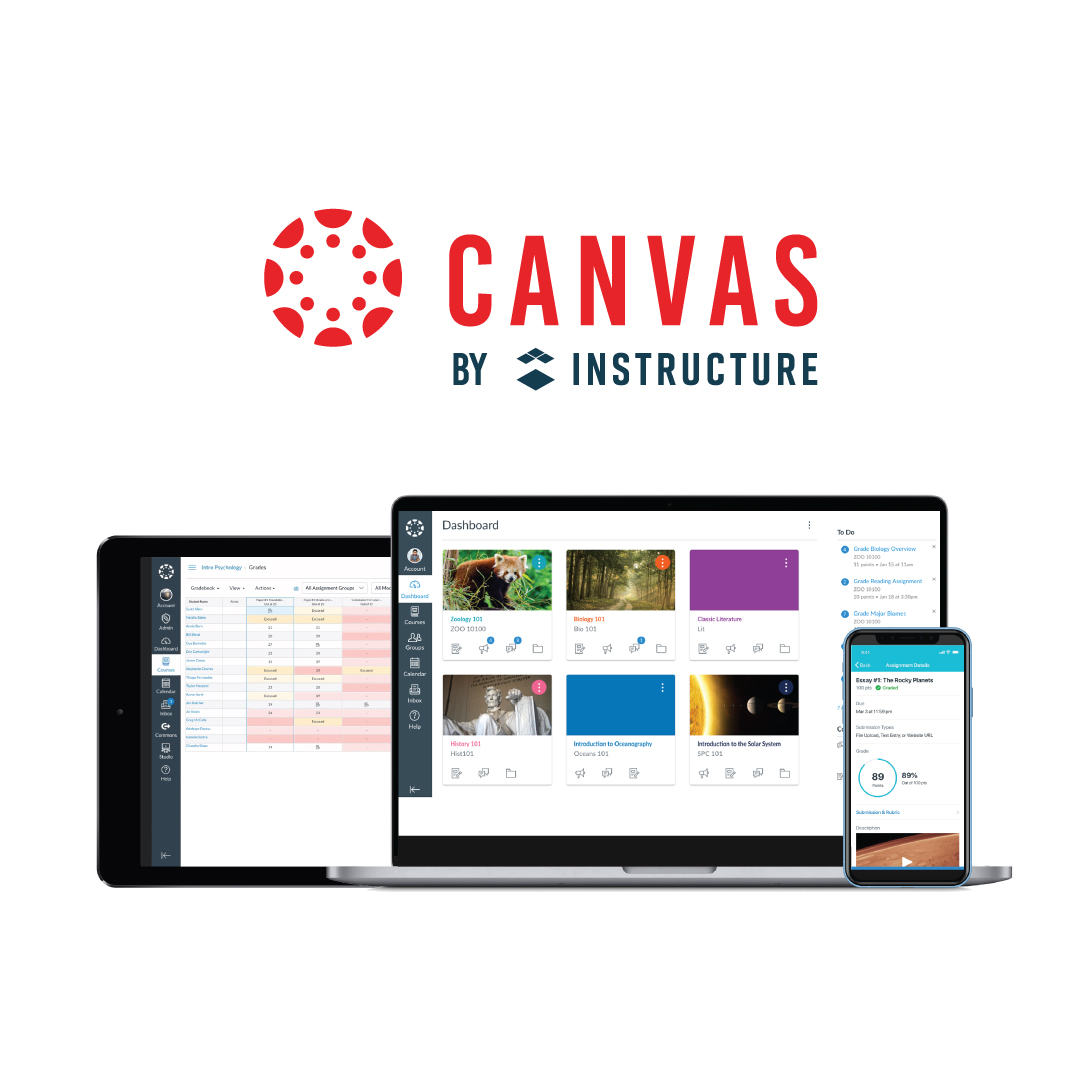
Navigating a major university learning platform shouldn't feel like a guessing game. Oregon State University relies on Canvas as its central digital hub for thousands of campus-based and online students. You'll use this system to check grades, submit assignments, download syllabi, and communicate with professors.
Understanding how the system works saves you hours of stress during midterm week. Let's break down how to access your account, manage your digital coursework, and solve common technical roadblocks without wasting time.
Accessing Your Canvas Oregon State Account
Getting into your virtual classroom starts with your university credentials. You don't need a separate password just for this portal.
Your login relies on your ONID account—the Oregon Network Identification username and password assigned to you upon admission.
- Navigate to the official Oregon State University Canvas Portal.
- Click the primary login button.
- Enter your ONID username and password when prompted by the secure single-sign-on screen.
- Complete any required multi-factor authentication steps using your Duo Security device.
Once you land on the global dashboard, you'll see your active courses listed as clickable cards. If a class you enrolled in doesn't appear, don't panic. Professors often keep course shells unpublished until the official term starts or the first day of class arrives.
Core Features of the Learning Platform
The layout looks clean, but it packs heavy functionality under the hood. You'll interact with specific modules every day.
Your dashboard features a global navigation sidebar on the far left. This menu houses your calendar, inbox, and course list. The calendar aggregates every upcoming due date across all your enrolled classes automatically. When a professor updates a deadline, the calendar shifts instantly.
Assignments live inside individual course pages, usually organized by weekly modules or thematic units. You'll upload papers, complete quizzes, and participate in graded discussion boards right from these sections.
Feedback doesn't just appear as a random letter grade. Professors use integrated markup tools to leave comments directly on your submitted PDFs and documents. You can view these annotations by clicking into the assignment submission details page.
Managing Online Courses and Ecampus Integration
Oregon State manages a massive population of remote learners through its Ecampus division. Whether you take every class online or mix remote study with physical lectures in Corvallis, the interface remains identical.
Ecampus classes often lean heavily on media tools embedded directly into the system. You'll encounter video lectures hosted on specialized media servers. These players include interactive transcript features, letting you search through spoken words to find specific lecture segments quickly.
Managing multiple deadlines requires proactive habits. Turning on notification preferences in your account settings helps you stay ahead. You can choose to receive immediate email alerts or push notifications through the mobile app whenever an instructor posts an announcement or grades a paper.
Common Pitfalls and How to Avoid Them
Even seasoned students run into digital friction points. Knowing what can go wrong helps you dodge preventable academic penalties.
- Missing submission windows: Don't wait until 11:58 PM to upload a heavy file. Slow Wi-Fi or conversion errors can lock you out before the midnight deadline hits. Aim to submit assignments at least a few hours early.
- Wrong file formats: If an instructor requests a PDF, submitting a strange word processor format can break the grading rubric view. Always double-check the required file extension before clicking upload.
- Browser cache issues: If quizzes fail to load or buttons become unresponsive, clear your browser cache or switch to an alternative browser like Firefox or Chrome.
Getting Technical Support
Technical glitches happen at the worst possible hours. Fortunately, help is available around the clock.
You'll find a dedicated Help link anchored at the bottom of the left-hand navigation menu inside your dashboard. Clicking this opens direct channels to 24/7 student support. You can initiate a live chat session, call a support hotline, or submit a trouble ticket. For account-specific enrollment problems or ONID password resets, reach out directly to the Oregon State Service Desk for fast resolution.
Frequently Asked Questions
Can I use a mobile app for my courses?
Yes, you can download the Canvas student app on iOS or Android devices. Log in by searching for Oregon State University when prompted to find your institution.
Why can't I see my uploaded feedback?
Some professors grade through external plugins like Turnitin. If you don't see notes on your document, check the bottom right corner of the submission review screen for detailed rubric comments.
What should I do if my professor posts an incorrect grade?
Send a direct message through the internal inbox tool immediately. Include specific context and reference the exact assignment title so your instructor can review the ledger quickly.
Are past classes archived anywhere?
Yes, completed terms move into your past enrollments list. You can access them by clicking Courses, selecting All Courses, and scrolling down to past terms, though submission capabilities will be locked.



