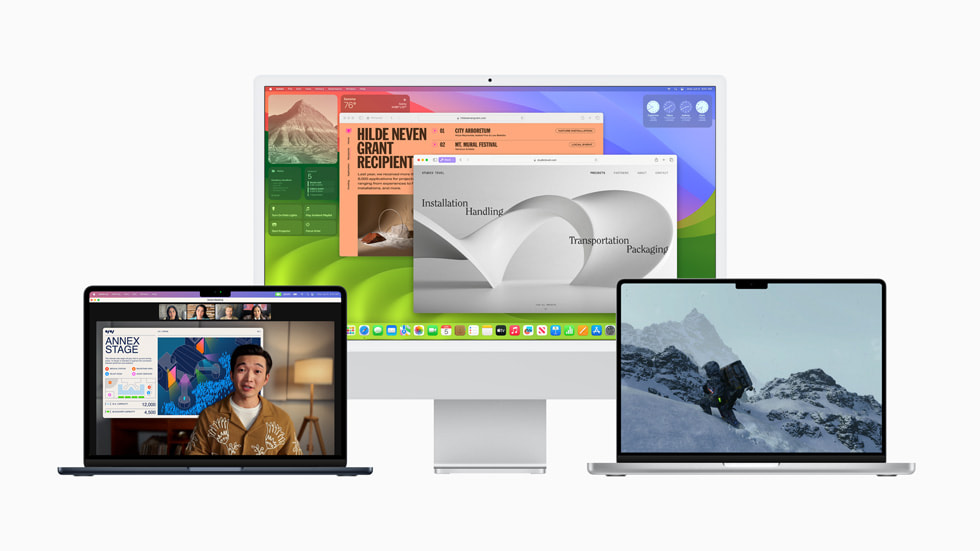
Officially, your 2014 MacBook Pro cannot handle macOS Sonoma. Apple drew the official support line at machines from 2018 and later, meaning this vintage laptop misses out on standard updates. However, unofficial tools like the OpenCore Legacy Patcher change the equation entirely, letting you boot into macOS Sonoma on older hardware. Whether your machine should run it is a different question altogether, balancing nostalgic capability against thermal limits and heavy resource demands.
Evaluating this upgrade requires looking past basic installation checkboxes. You need to weigh how a decade-old dual-core or quad-core processor handles modern graphics libraries, Metal requirements, and resource-heavy Safari processes. Let's break down what happens when you push a 2014 MacBook Pro past its official boundaries.
Official Compatibility Versus Reality
Apple structures its operating system releases around specific hardware architectures. macOS Sonoma dropped support for all 2017 and older Macs, primarily due to changes in graphics driver frameworks, AV1 decoding support, and security requirements.
Your 2014 MacBook Pro shipped with either an Intel Haswell dual-core processor (in the 13-inch Retina models) or an Intel Crystal Well quad-core processor (in the 15-inch models), paired with Intel Iris graphics or an aging NVIDIA GeForce GT 750M. Because these components lack native instruction sets that modern macOS features rely upon, Apple stops updates at macOS 11 Big Sur or macOS 12 Monterey natively.
If you check your Software Update pane right now, you won't see Sonoma. But thousands of users bypass this restriction using custom bootloaders.
The Unofficial Route: OpenCore Legacy Patcher
The primary method for getting macOS Sonoma onto an unsupported laptop is OpenCore Legacy Patcher (OCLP). This utility injects required drivers, patches graphic acceleration elements, and spoofs your machine profile so Apple's installer thinks you're running a compatible device.
The installation process follows a specific sequence:
- Back up your existing data using Time Machine or an external drive.
- Download a clean copy of the macOS Sonoma installer from Apple's official app ecosystem or software repository.
- Build the patched installer onto an 16GB or larger USB flash drive using the OCLP app.
- Install OpenCore to your internal drive's EFI partition so you can boot independently.
- Boot from the USB stick, run the installer, and let OCLP apply post-install root patches for your graphics and Wi-Fi drivers.
While functional, this approach introduces minor quirks. Continuity features like Universal Control or iPhone Cellular Calls might fail unless you replace the stock Wi-Fi/Bluetooth card with a newer Broadcom module.
Performance Expectations: What to Anticipate
Running a modern operating system on 2014 silicon creates distinct performance bottlenecks.
CPU and Thermal Throttling
Sonoma background processes—such as Spotlight indexing, continuous security checks, and window management animations—demand constant CPU cycles. The cooling fans in a 2014 MacBook Pro will spin up quickly under load. If your thermal paste has dried out over the last decade, expect thermal throttling almost immediately during heavy multitasking.
RAM and Storage Constraints
Base configurations of the 2014 13-inch MacBook Pro feature just 8GB of soldered RAM. Sonoma runs fine with 8GB for basic tasks, but browser tabs and modern web apps eat through memory fast. If you own a base model with 4GB of RAM (common in some MacBook Air lines of that era, though rare in Pro models), Sonoma will feel sluggish. Furthermore, ensure you're running a fast solid-state drive; mechanical or failing flash storage will bottleneck the virtual memory swap files.
Battery Health
Older lithium-ion batteries degrade over time. Running an operating system that stresses vintage power management protocols can reduce battery life further. If your battery cycle count is past 800, expect limited unplugged runtimes.
Common Pitfalls During the Upgrade
Users attempting this upgrade often run into avoidable mistakes that break their workflow:
- Skipping the backup phase and losing critical documents when a partition fails.
- Forgetting to update the OCLP app before attempting an over-the-air macOS point update (like moving from 14.1 to 14.5), which results in a boot loop.
- Ignoring root patches, leading to a sluggish desktop interface without hardware acceleration.
- Installing on machines with failing internal SSDs using proprietary Apple connectors.
Frequently Asked Questions
Can I receive standard software updates after patching?
Yes, minor point updates arrive via the standard system settings panel, but you must update your OCLP patcher application before applying them to prevent boot failures.
Will professional apps like Photoshop run better?
No. Heavy creative software relies on modern GPU architectures and AVX instruction sets that your 2014 hardware simply lacks. Performance will likely lag behind older, native operating systems.
Is it safe to use banking apps on a patched 2014 Mac?
While Sonoma receives security patches from Apple, the underlying bootloader modification means you are relying on third-party open-source code to bridge the security gap. For most users, it remains stable for daily web browsing, but evaluate your personal risk tolerance.
Should I upgrade or stay on Monterey?
If you rely on this machine for daily mission-critical work, stay on macOS Monterey or Big Sur, which offer stable native performance. If this is a secondary hobby machine and you want modern interface styling, the Sonoma patch is worth exploring.