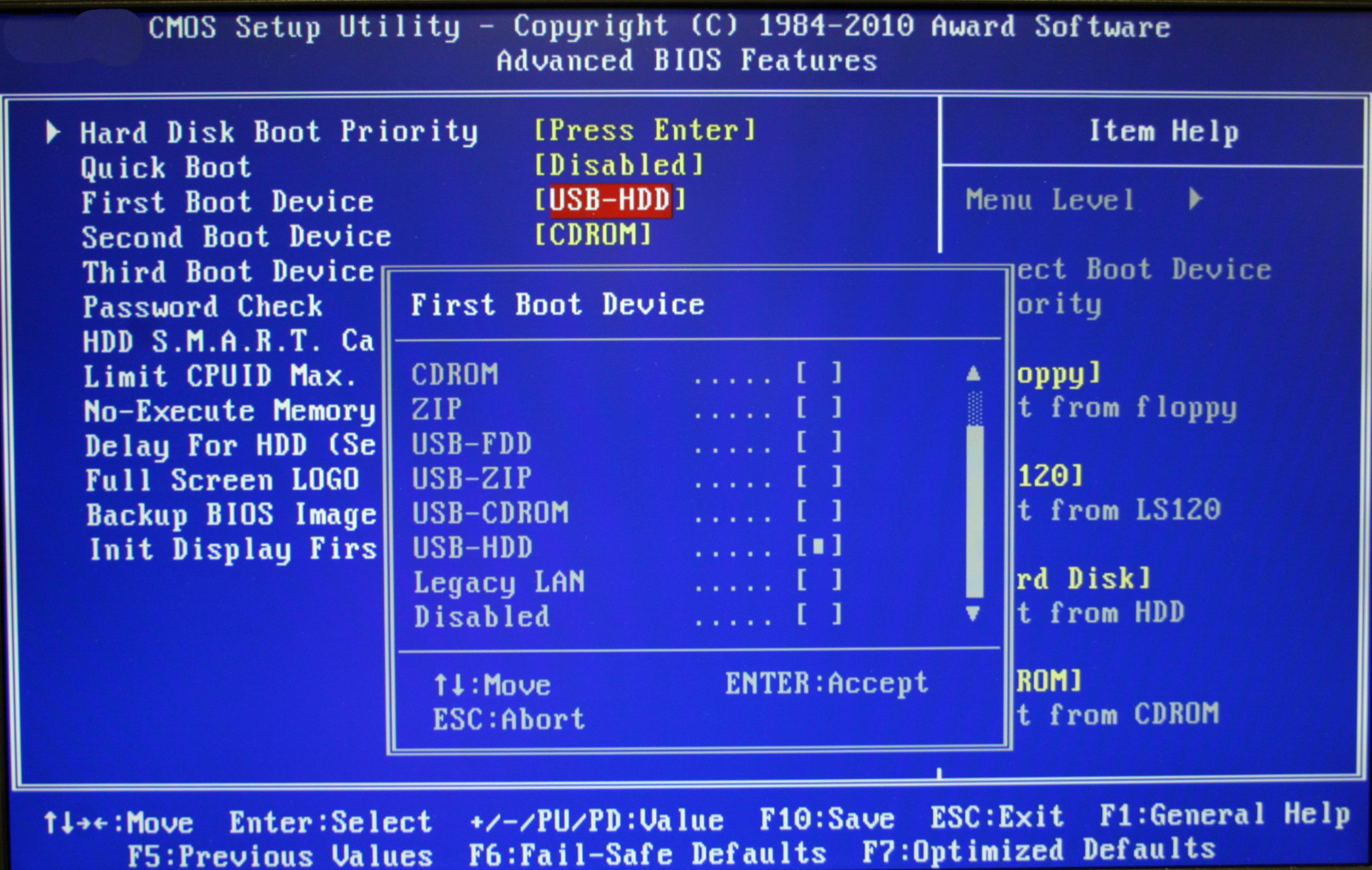
Your computer starts long before you see the desktop. The moment you press the power button, a tiny chip on your motherboard takes control. That chip holds the BIOS, which stands for Basic Input/Output System.
Put simply, the BIOS is low-level firmware that wakes up your hardware and hands over control to your operating system. Without it, your CPU wouldn't know how to talk to your keyboard, read your hard drive, or check your RAM. While modern systems use its successor, UEFI, understanding how this firmware operates helps you troubleshoot boot failures, change boot drives, and secure your machine.
What Does BIOS Do?
When power hits your motherboard, the CPU executes code from a fixed memory address on a flash memory chip. This initial routine kicks off a strict checklist before any software loads from your storage drive.
The firmware performs several vital tasks in sequence: To see the complete picture, check out the excellent analysis by The New York Times.
- Power-On Self-Test (POST): Checks that essential hardware like your RAM, processor, and keyboard are connected and working correctly. If a component fails, the system halts or emits diagnostic beep codes.
- Hardware Initialization: Wakes up system chips, configures system buses, and sets up clock speeds for the CPU and memory.
- Device Discovery: Scans connected storage drives, expansion cards, and USB ports to build an inventory of usable hardware.
- Boot Loader Handover: Reads the first sector of your designated primary boot drive, loads the boot sector into memory, and passes control to your operating system loader.
BIOS vs. UEFI: What Changed?
The original BIOS design dates back to the early IBM PC era of the 1980s. For decades, it relied on a 16-bit processor mode, text-only interfaces, and the Master Boot Record (MBR) partitioning scheme.
As hardware advanced, those legacy constraints created major bottlenecks. Hard drives grew past 2.2 terabytes, and users demanded instant startup times. That limitation drove the industry toward UEFI (Unified Extensible Firmware Interface).
While people still casually say "entering the BIOS," almost every modern PC manufactured in the last decade actually runs UEFI.
Key Differences Between Legacy BIOS and UEFI
- User Interface: Legacy BIOS features a rudimentary, keyboard-only text menu. UEFI supports full graphical user interfaces (GUIs) with mouse support and high resolutions.
- Drive Capacity: Legacy BIOS relies on MBR, capping bootable drive sizes at 2.2 TB. UEFI uses the GUID Partition Table (GPT), supporting drives well beyond petabytes.
- Boot Speed: UEFI initializes hardware in parallel and operates in 32-bit or 64-bit mode, cutting startup times significantly compared to sequential 16-bit BIOS routines.
- Security: UEFI introduces Secure Boot, a feature that verifies the digital signatures of operating system loaders to prevent rootkits and malware from hijacking the boot sequence.
For official details on firmware standards, you can reference the Unified Extensible Firmware Interface Forum.
How to Access Your Motherboard Settings
You can view and modify your firmware settings by pressing a specific key sequence immediately after turning on your computer. Manufacturers assign different keys during the POST screen.
Common keys include:
- Delete or F2 for most desktop motherboards (ASUS, MSI, Gigabyte).
- F10 or F1 for many Hewlett-Packard systems.
- F2 or Fn + F2 for Dell laptops.
- Novo Button or a pinhole switch for certain Lenovo laptops.
Once inside, you can change settings such as the system time, hardware fan curves, and boot priorities. You can also enable features like Intel XMP or AMD EXPO to run your RAM at its rated speed.
Common Mistakes and Risks
Adjusting firmware settings carries real risk. Because these options control direct hardware interaction, incorrect changes can render a system unbootable.
- Flashing BIOS carelessly: Interrupting a firmware update (such as turning off the PC during a flash) can corrupt the chip, requiring a motherboard replacement or specialized recovery tools. Only update your firmware if you are fixing a specific bug or adding support for a new CPU.
- Enabling aggressive overclocks: Pushing voltage or frequency limits too high without adequate cooling can cause persistent crashes or permanent silicon degradation.
- Changing SATA controller modes: Switching between AHCI and RAID modes after installing Windows will cause blue screens on boot because the operating system lacks the corresponding storage driver loaded.
Frequently Asked Questions
Is BIOS stored on the hard drive?
No. BIOS and UEFI firmware live on a dedicated flash memory chip soldered directly onto the motherboard. This means your computer can run firmware diagnostics and display menus even if no hard drive is installed.
What is CMOS memory?
Complementary Metal-Oxide-Semiconductor (CMOS) is a tiny amount of volatile memory powered by a coin-cell battery on the motherboard. It stores user-modified settings like boot order and system time. If you clear your CMOS by removing the battery, your settings reset to factory defaults.
How do I update my firmware?
You download the latest firmware file from your motherboard manufacturer's support site (such as ASUS Support or MSI Support), place it on a formatted USB drive, enter your firmware utility, and use the built-in flashing tool (like ASUS EZ Flash) to apply the update. Never use Windows-based utilities if a native firmware-level flasher is available.
Can a virus infect the BIOS?
Yes, though rare, firmware-level malware known as rootkits can target system firmware. Modern UEFI implementations mitigate this risk through hardware-backed cryptographic verification and Secure Boot protocols.


