Moving pictures from your phone to a computer shouldn't require messy cables or cloud sign-ins. If you want a direct wireless method, an android to pc transfer photos via bluetooth workflow gets the job done without extra software. While USB cables or cloud storage are common, Bluetooth remains a built-in fallback when you're away from Wi-Fi or lack a cable.
Windows and modern Android devices include native support for Bluetooth object transfers. Performance depends heavily on your hardware generation. Older adapters can crawl at glacial speeds, but modern Bluetooth 5.0+ chips handle small batches of snapshots just fine. Let's walk through how to set up the connection, move your pictures successfully, and fix common pairing roadblocks.
Preparing Both Devices for Pairing
Before you send files, your phone and computer need to recognize each other. Windows doesn't leave its Bluetooth receiver open to incoming transfers by default, so you have to tweak a couple of settings first.
Configuring Windows Bluetooth Settings
Open your Windows settings by pressing the Windows key and typing Bluetooth.
- Click on Bluetooth & other devices.
- Toggle the main Bluetooth switch to On.
- Go deeper into More Bluetooth options or Related settings depending on your Windows version.
- Check the box that says Allow Bluetooth devices to find this PC.
- Click Apply and close the panel.
Preparing Your Android Phone
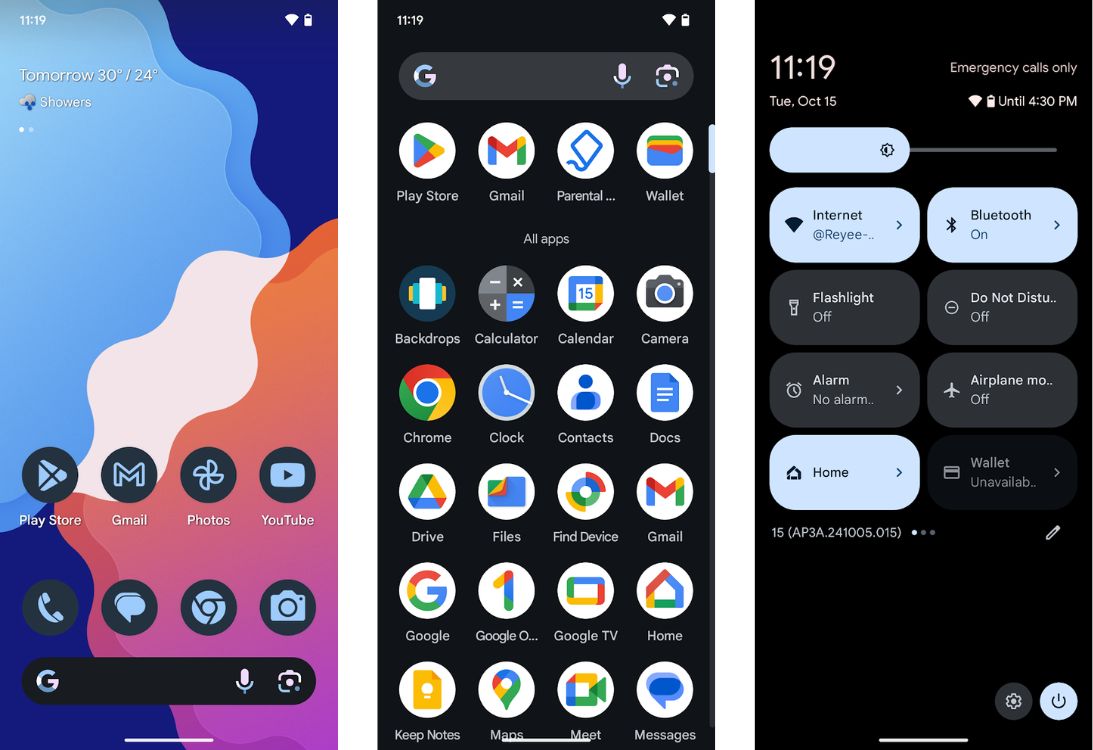
Swipe down from the top of your screen to open the quick settings shade. Tap the Bluetooth icon to turn it on, then press and hold the icon to open your full Bluetooth settings menu. Tap Pair new device or make sure your phone is set to visible to nearby equipment. Keep this screen open while you search from your computer to ensure a stable handshake.
Pairing Your Android Phone and Windows PC
Establishing a trusted connection takes about a minute. Do this part carefully to avoid PIN mismatch errors.
- On your Windows PC, click Add device under the Bluetooth menu and choose Bluetooth as the device type.
- Windows will scan the airwaves. Look for your phone's name in the list and click it.
- A matching PIN code will pop up on both your computer screen and your phone display.
- Verify the numbers match, then tap Pair on your phone and Connect on your PC.
If your PC fails to recognize the phone, turn Bluetooth off on both devices for ten seconds, turn them back on, and try the scan again. For detailed troubleshooting on Windows wireless features, check the Microsoft Support Hub.
Sending Photos from Android to PC
Now that your devices are paired, you can push pictures across the airwaves. The trick here is that you initiate the receiving action on Windows first.
- Right-click the Bluetooth icon in your Windows system tray (bottom right corner of your screen, near the clock).
- Select Receive a File. Windows will open a small window waiting for an incoming connection.
- Open the Gallery or Google Photos app on your Android phone.
- Select the pictures you want to move. Tap the Share button.
- Scroll through the app list and tap Bluetooth.
- Select your Windows PC from the list of paired devices.
Your computer will register the incoming files. A progress bar will appear on your desktop. Once the transfer finishes, Windows will prompt you to choose a destination folder. Click Browse if you want to move them out of the default Documents folder, then click Finish.
Common Transfer Mistakes and Fixes
Bluetooth file transfers fail more often than Wi-Fi or USB connections due to interference and outdated drivers. Here is how to fix the most common bottlenecks.
Slow Transfer Speeds
Bluetooth transfers pictures one file at a time or in very small queues. If you select five hundred high-resolution photos, the process will take hours. Stick to batches of ten to twenty pictures at once. For massive libraries, a standard USB cable or a direct local network share works much better.
Missing "Receive a File" Prompt
If you send photos from your phone without opening the Receive a File window on Windows first, the computer will reject the incoming data packet. Always prep your PC before tapping share on your phone.
Driver Failures
If Windows refuses to pair with your phone entirely, your Bluetooth adapter driver might be outdated. Visit your computer manufacturer's website or check Intel Drivers and Software if you use an Intel wireless card to grab the latest software patch.
Frequently Asked Questions
Can I transfer videos using Bluetooth?
You can, but you shouldn't. Video files are massive compared to photos. A single one-minute video clip can take twenty minutes to crawl across a standard Bluetooth connection, and interference will likely break the stream halfway through.
Why does my PC say the file format isn't supported?
Windows natively accepts standard image formats like JPEG and PNG. If your phone shoots in HEIC or RAW format, your PC might not know what to do with the incoming file until you install the proper image codecs from the Microsoft Store.
Do I need an internet connection for this?
No. Bluetooth operates locally using radio frequencies between your two devices. You can transfer photos out in the middle of nowhere without cell service or Wi-Fi.
How do I send photos the other way around?
Open your computer's Bluetooth settings, click Send a file, pick the picture you want to send, and choose your phone as the target device. Accept the incoming prompt on your Android screen to save the image to your downloads folder.



