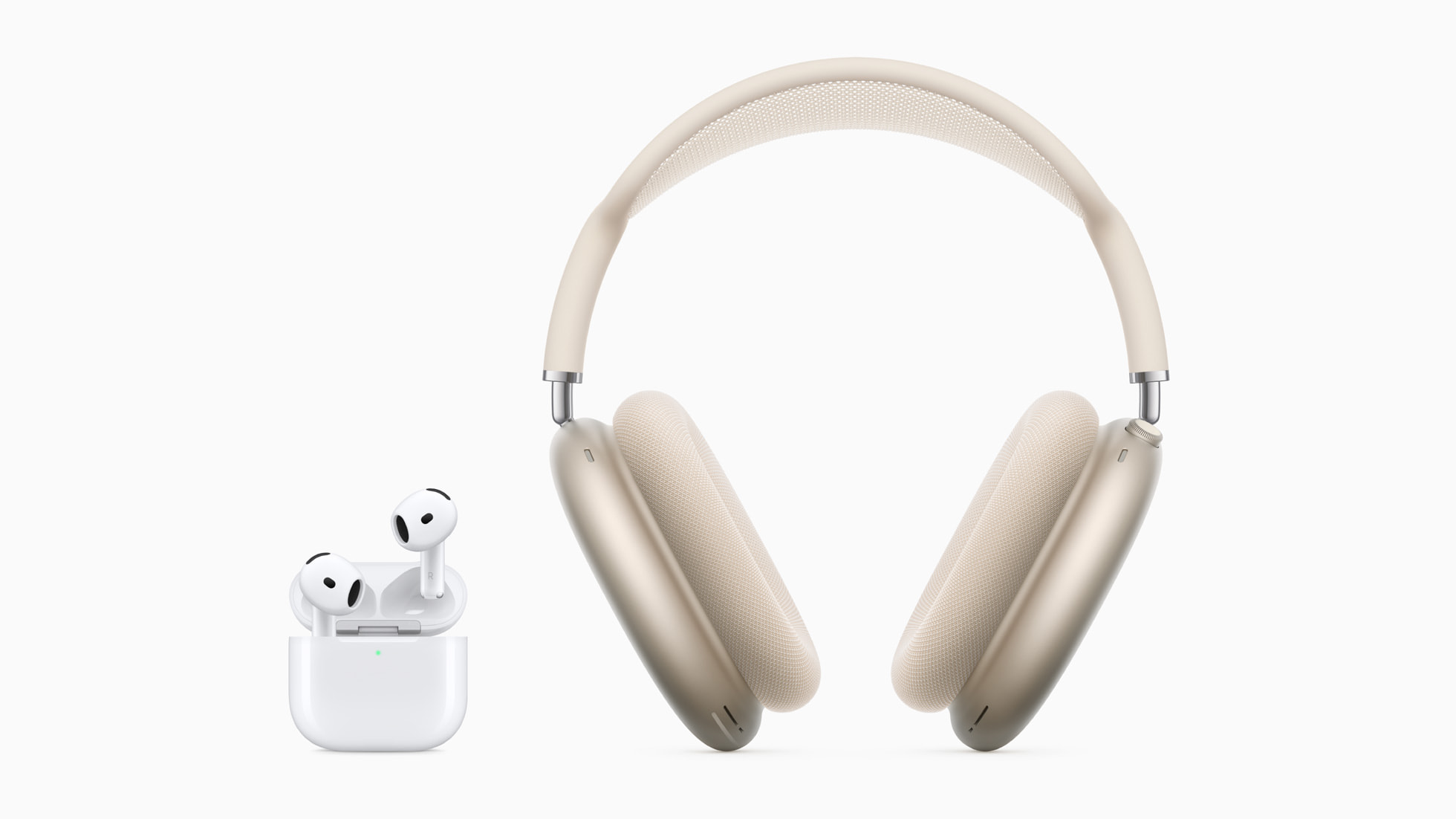
When your AirPods show a connected status in your phone or computer’s Bluetooth menu but refuse to output any audio, the disconnect usually stems from a routing error, a minor software glitch, or an unselected playback device. You can fix this issue in seconds by forcing your host device to properly route audio playback to your earbuds, resetting the Bluetooth handshake, or clearing minor firmware bugs.
Start your troubleshooting by opening your device's audio output settings to verify that your AirPods are explicitly selected as the active playback destination. Next, place both earbuds inside their charging case, close the lid for thirty seconds, and turn your device's Bluetooth toggle off and back on to re-establish a clean connection.
Verify Audio Output and Volume Levels
Your phone or computer might maintain a Bluetooth link with your AirPods while routing sound through the built-in speakers or another peripheral. This common miscommunication happens when an app launches or when multiple audio devices stay active simultaneously.
- Open the Control Center on your iPhone or iPad, tap the AirPlay icon in the top right corner of the media player, and explicitly check the box next to your AirPods.
- On a Mac, click the sound icon in the menu bar or navigate to system sound settings to confirm your AirPods are chosen as the output source.
- On Windows or Android, open your sound or connected devices menu to verify that media audio is directed to your earbuds rather than a speaker or default system driver.
Once you confirm the output path, play an active track and press the physical volume-up button on your device several times. Bluetooth volume levels can occasionally desynchronize from your host device, leaving media playback muted at the hardware level even when the slider looks normal.
Reset the Bluetooth Handshake
A corrupted local Bluetooth cache can trap your AirPods in a state where they handshake with your hardware for data transfer but fail to stream audio codecs. Refreshing this wireless link clears temporary communication bottlenecks.
- Go to your device's Bluetooth settings menu.
- Locate your AirPods in the device list and select Forget This Device or unpair them.
- Turn off your device's Bluetooth radio completely, wait ten seconds, and turn it back on.
- Put both AirPods back in their charging case, close the lid, wait thirty seconds, and then open the lid near your device to trigger the setup animation or pairing mode.
If you're pairing with non-Apple hardware like a Windows PC or an Android phone, you may need to hold the small setup button on the back of the charging case until the status light flashes white. For official guidance on pairing models correctly, check the Apple Support Guide.
Address Power and Charging Anomalies
If one AirPod works while the other remains silent, or if both connect silently, you might be dealing with an uneven battery drain or dirty charging contacts. AirPods can report a connected status if only a single earbud has enough residual power to maintain a Bluetooth link, but they won't stream sound properly if the primary bud is dead.
- Place both earbuds back into the charging case and inspect the small status light. If it flashes amber, the case is charging the earbuds.
- Check the battery pop-up widget on your phone to verify that both the left and right units show active charging percentages.
- Inspect the bottom stem of each AirPod and the interior of the charging case for pocket lint or debris that blocks the metal charging pins. Clean them gently with a dry, lint-free microfiber cloth or a soft-bristled brush.
Manage Automatic Ear Detection Glitches
Automatic Ear Detection uses built-in optical sensors to pause audio when you take an AirPod out of your ear. When earwax, sweat, or skin oils smudge these sensors, the firmware can misinterpret your ear placement and cut off sound entirely.
To test if this sensor is causing your silence:
- Open your device's Bluetooth settings and tap the i icon next to your connected AirPods.
- Locate the toggle for Automatic Ear Detection and switch it off.
- Play a song to see if audio returns. If it does, wipe down the small black grilles on your earbuds with a clean cotton swab to remove accumulated oils.
You can safely re-enable Automatic Ear Detection once the sensors are clean and responding normally. For detailed specifications on maintaining hardware longevity, review the Apple AirPods Maintenance Overview.
Perform a Factory Reset on Your AirPods
When software bugs run deep within the tiny computer chips inside your earbuds, standard reconnections won't cut it. A hard factory reset clears the internal cache and forces the firmware to reload from scratch.
- Place your AirPods in the charging case and close the lid for thirty seconds.
- Forget the AirPods from your phone or computer's Bluetooth settings list.
- Open the charging case lid.
- Press and hold the setup button on the back of the case. Keep holding it for about fifteen seconds until the front status light flashes amber and then blinks white.
- Hold the case close to your device and follow the on-screen prompts to set them up as new.
Note that if you use AirPods 4, which lack a physical rear button, you'll double-tap the front of the case three times while the lid is open to initiate the reset sequence.
Frequently Asked Questions
Why do my AirPods connect but only play sound in one ear?
This usually happens when the silent earbud has a depleted battery, a dirty speaker mesh blocking the sound output, or a misconfigured audio balance setting. Check your device's accessibility settings to ensure the Audio Balance slider is centered between left and right.
Can outdated software cause my AirPods to lose sound?
Yes. If your iPhone, iPad, or Mac runs an older operating system version, it may fail to communicate properly with newer AirPods firmware. Update your host device's operating system to the latest version to ensure full Bluetooth protocol compatibility.
What should I do if my AirPods work for calls but not for music?
When phone calls work but media apps remain silent, your device has likely separated call audio from media audio profiles. Close the misbehaving music app entirely, restart your phone, and check the app-specific audio output permissions inside your device settings.
Do I need to clean my AirPods if they connect without sound?
Cleaning won't fix a complete software disconnect, but accumulated earwax often muffles sound so heavily that it mimics a total lack of audio. Inspect the metal speaker mesh under a bright light and clear any visible buildup with a dry brush.



